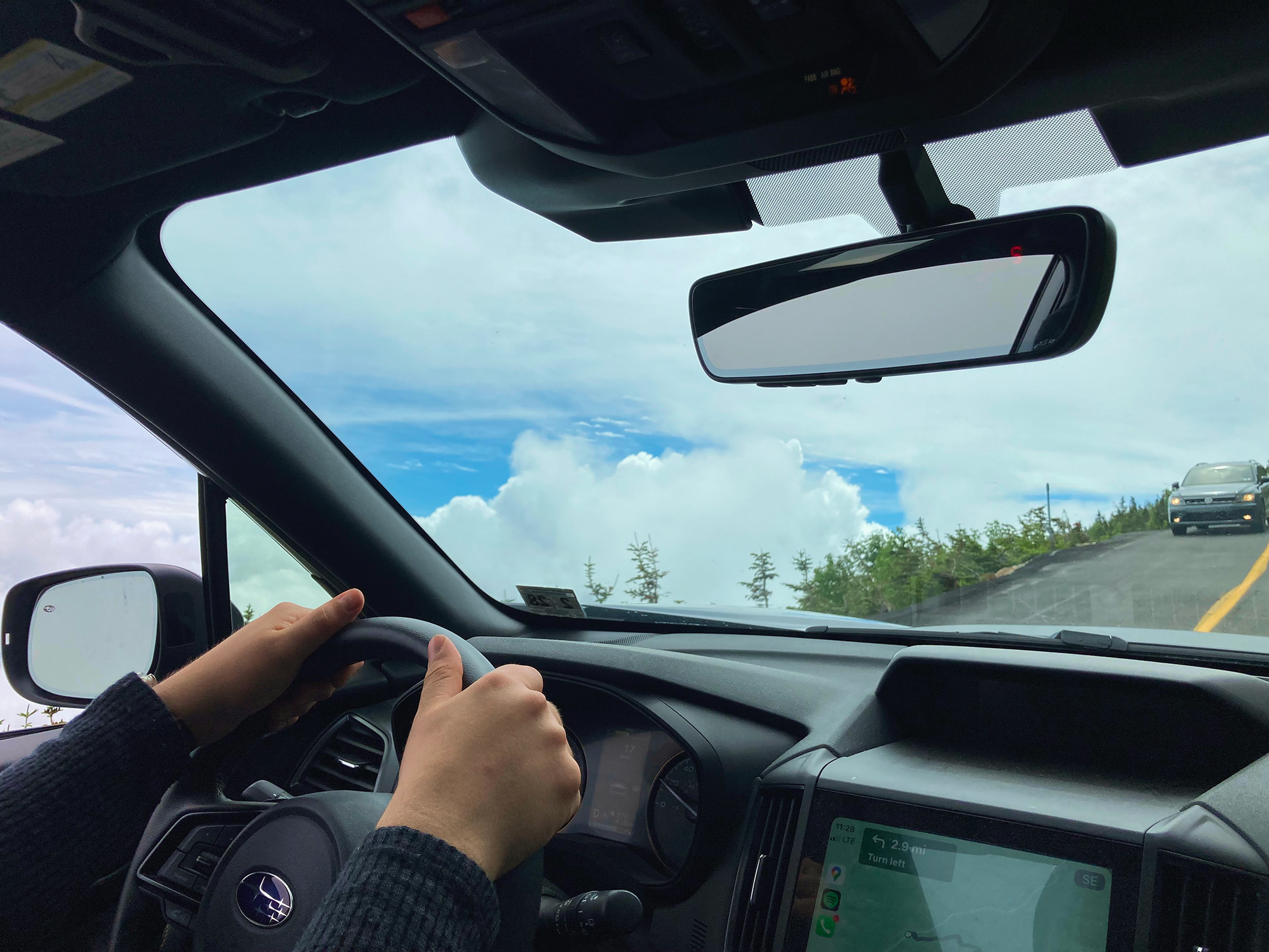


Adding your car to BetterKey is quick when everything is already set up correctly.
Before you start, make sure your car already works in your car brand’s app.
BetterKey builds on that connection. It does not replace it.
Before you start#
Make sure all of these are true:
- You have the BetterKey app installed on your iPhone
- Your car is listed on the compatibility page
- Your car already appears in your car brand’s app (for example, FordPass, MyChevrolet, or MyHyundai)
- Remote features like lock and unlock already work there
- You know the login for that app
If your car does not already work in your car brand’s app, BetterKey will not be able to connect.
Quick check#
Open your car’s app and try a remote action.
- If you can lock or unlock your car, you’re ready to continue.
- If not, you’ll need to finish setup in your car brand’s app first.
You can still try connecting your car if you’re unsure, but you should check the compatibility page if you haven’t already.
Ready to connect your car?#
Follow the step-by-step setup guide:
This shows every screen in the app from start to finish.
Need help?#
If your car is listed but setup isn’t working, make sure remote actions like lock and unlock work in your car brand’s app first.
If you’re not sure whether your car is supported, check the compatibility page.
If you still need help, email hello@betterkey.xyz.
Try BetterKey free for 1 week.