Add Your Car
Connect your car to BetterKey with Smartcar, confirm it appears in the app, and understand when a subscription is required.
Before you connect, your car must:
- Support remote features such as lock and unlock
- Be set up in your manufacturer’s app
- Have an active remote service subscription, if your manufacturer requires one
Follow the steps
Open BetterKey
If this is your first car, you should land on the empty-state screen.
Tap Connect my car to start. BetterKey will open the secure Smartcar connection flow directly from this screen.
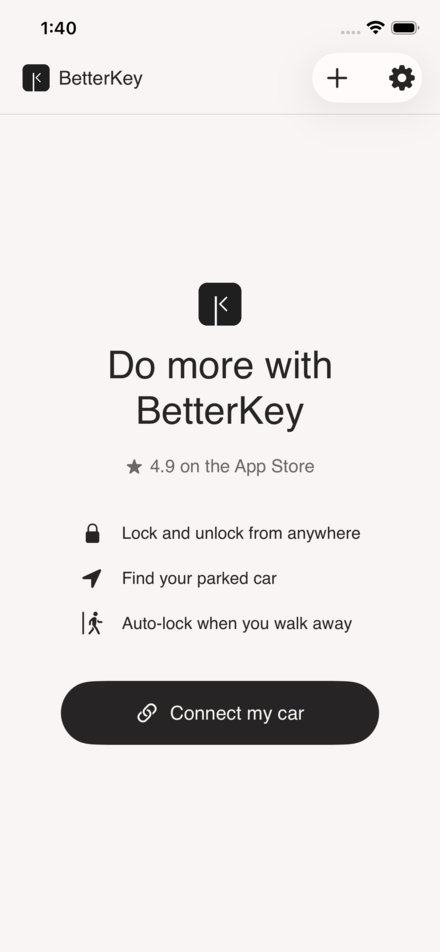
Start the Smartcar connection
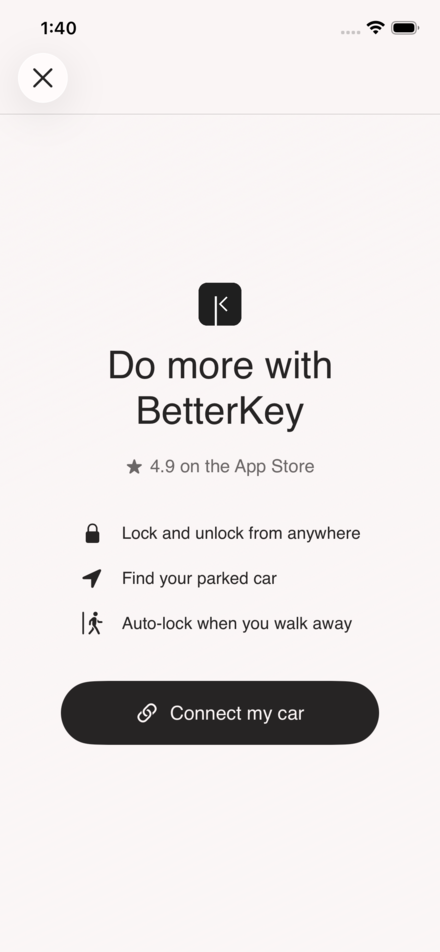
BetterKey shows the same connect screen before sending you to Smartcar.
If you already have a car connected, tap the + button on the vehicle list to open this screen. Tap Connect my car to continue.
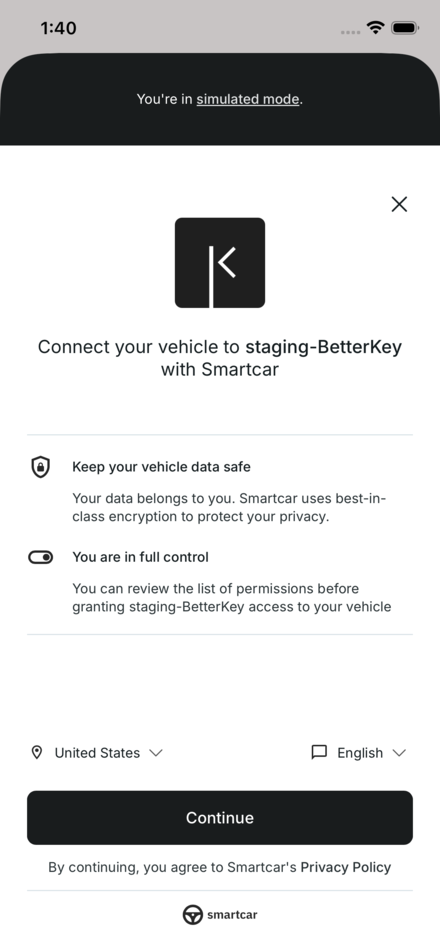
Sign in with your car account
To connect your car, sign in with your manufacturer account.
This step is handled securely by Smartcar, a trusted platform used to connect cars. BetterKey never sees or stores your login credentials.
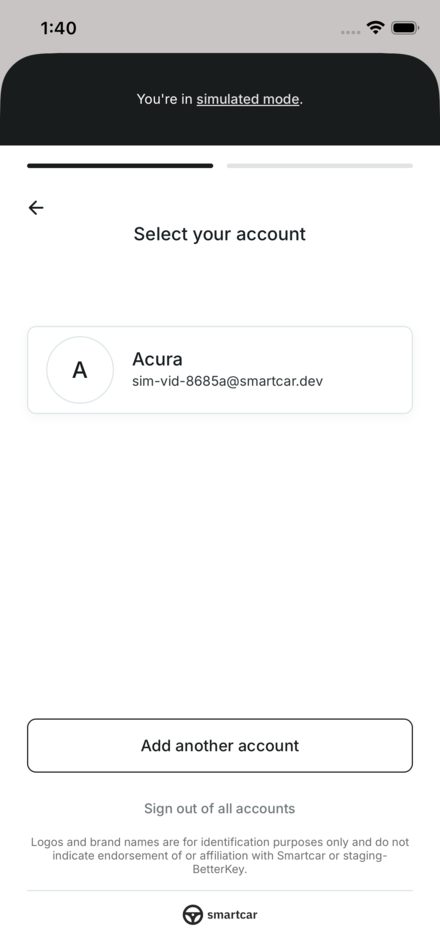
Sign in with your manufacturer credentials
Sign in using the same credentials you use in your manufacturer’s app.
If you don’t have an account yet, or your car is not set up there, you’ll need to complete that first before continuing.
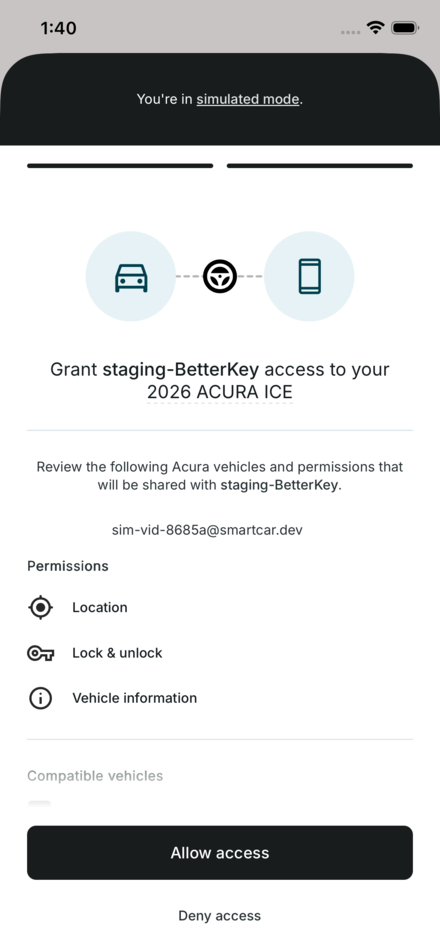
Allow car access
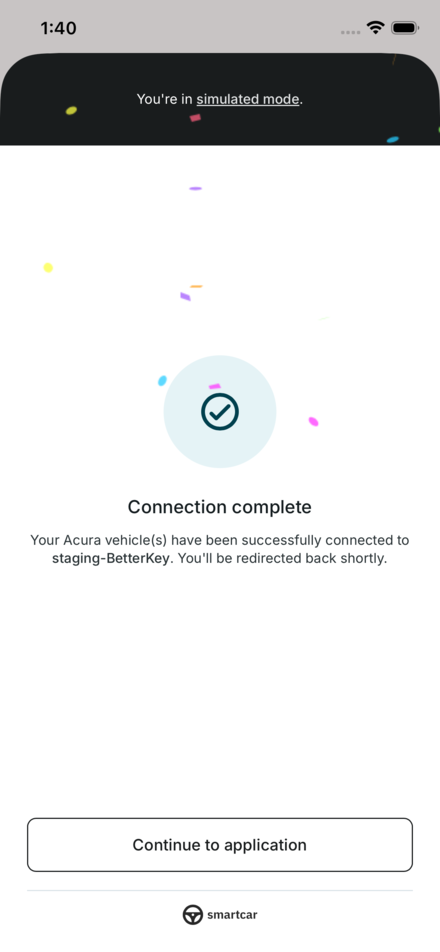
Return to BetterKey
Smartcar confirms when the connection is complete and then returns you to BetterKey.
Keep BetterKey open while it finishes adding the car.
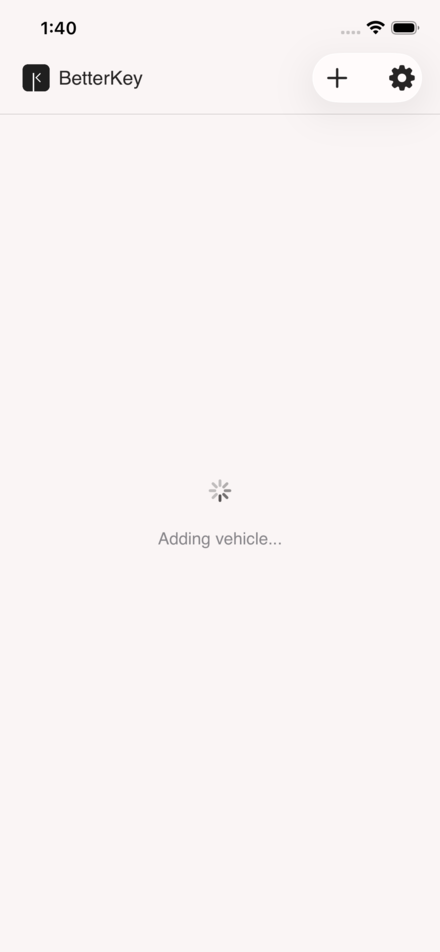
Wait for the car to finish adding
After Smartcar closes, BetterKey may show a loading screen while the car is added.
This can take a few seconds. Keep BetterKey open until the vehicle list refreshes.
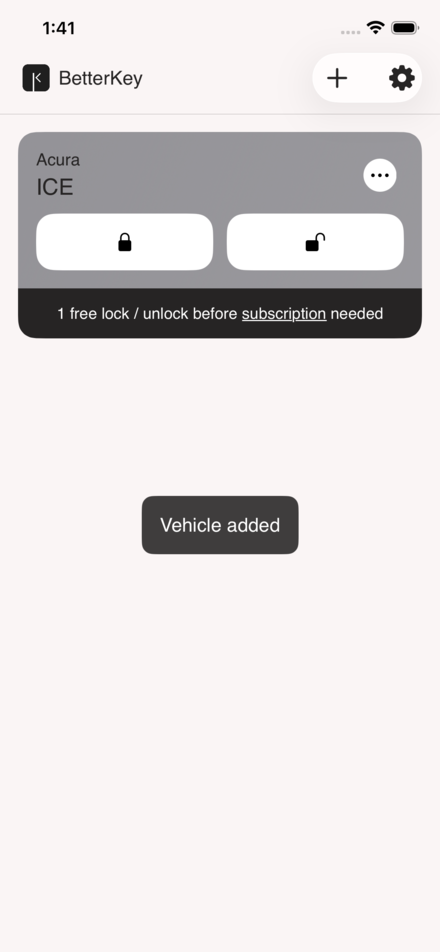
Confirm the car was added
Once setup is complete, your car will appear in BetterKey.
If you are not subscribed yet, try lock or unlock to confirm the connection — then enjoy your Free Week of full control.
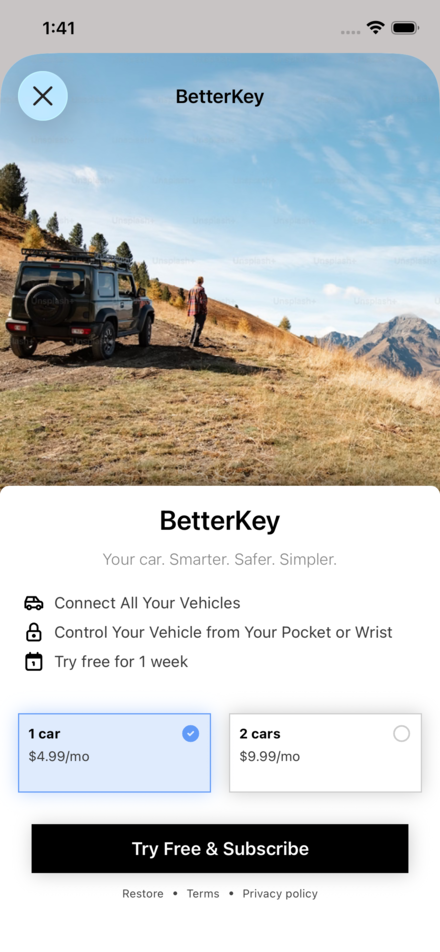
Subscribe when you are ready to keep using remote controls
BetterKey lets you connect your first car before subscribing.
After Free Week ends, remote controls such as lock and unlock require a subscription. Tap the subscription message on your vehicle card to choose a plan.
FAQ
Are my car login details safe?
Yes.
You sign in directly with your car brand using a secure service called Smartcar. BetterKey never sees or stores your password.
You stay in control and can remove access at any time.
How do I know if my car is supported?
Check your make, model, and year on the compatibility page.
If your car is listed, it is likely supported. New models may be compatible before they appear in the compatibility page.
If you’re unsure, contact us.
Do I need a subscription before I add my first car?
No.
You can connect your first car before subscribing. Every new account includes a Free Week of full control.
After Free Week ends, remote controls such as lock and unlock require a subscription.
Why does BetterKey keep loading after Smartcar closes?
After Smartcar approves the connection, BetterKey still needs to finish adding the car on the backend.
This can take a few seconds. Keep BetterKey open until the vehicle list refreshes and your car appears.