Set Up iPhone Widgets and Controls
Add BetterKey to your Home Screen, Lock Screen, or Control Center, choose a vehicle, and fix missing options.
BetterKey offers three iPhone widgets and two individual controls. Add as many instances as you need, then choose a different vehicle for each configurable instance.
Before you start, make sure:
- Your iPhone is running iOS 18 or later
- BetterKey is installed, you are signed in, and the vehicle you want appears in the app
- You have opened BetterKey at least once after installing or updating it
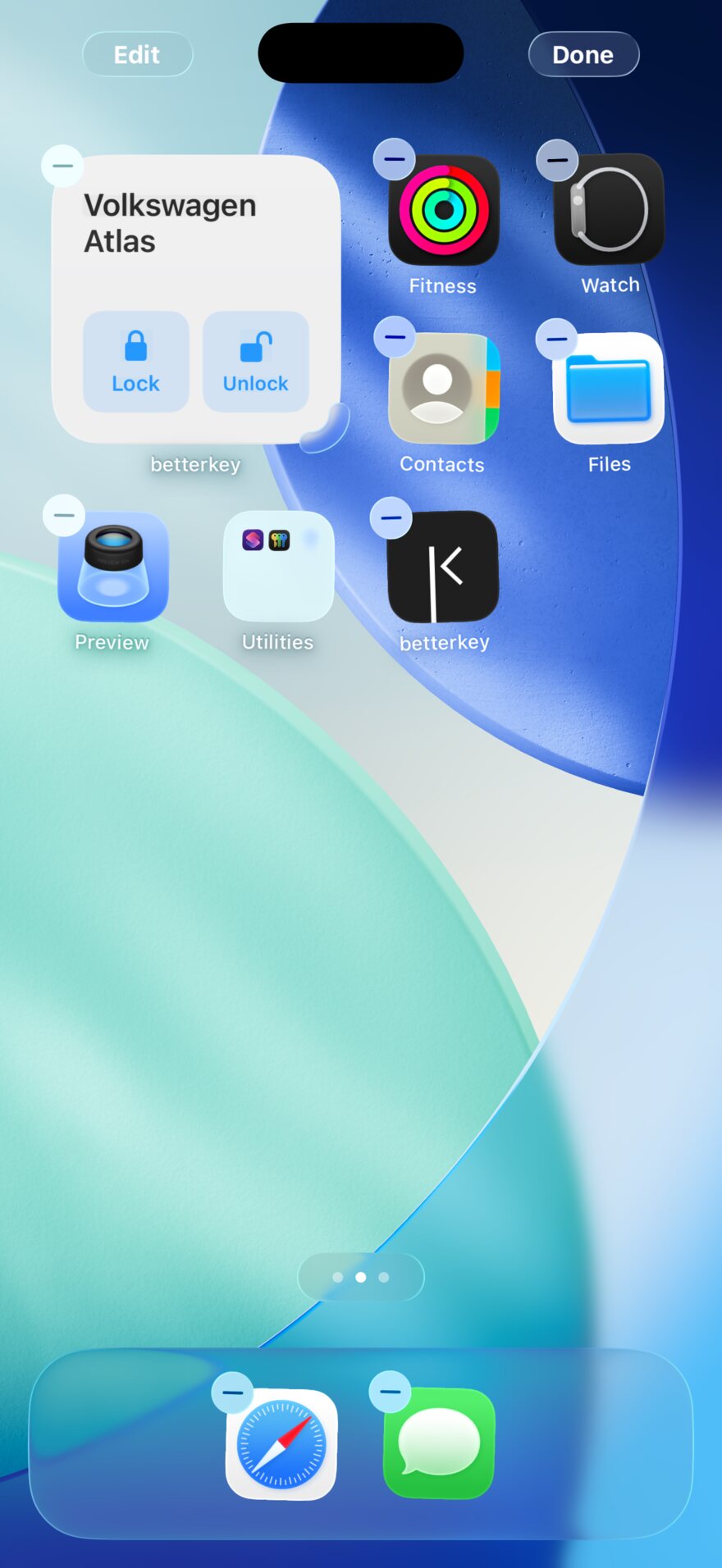
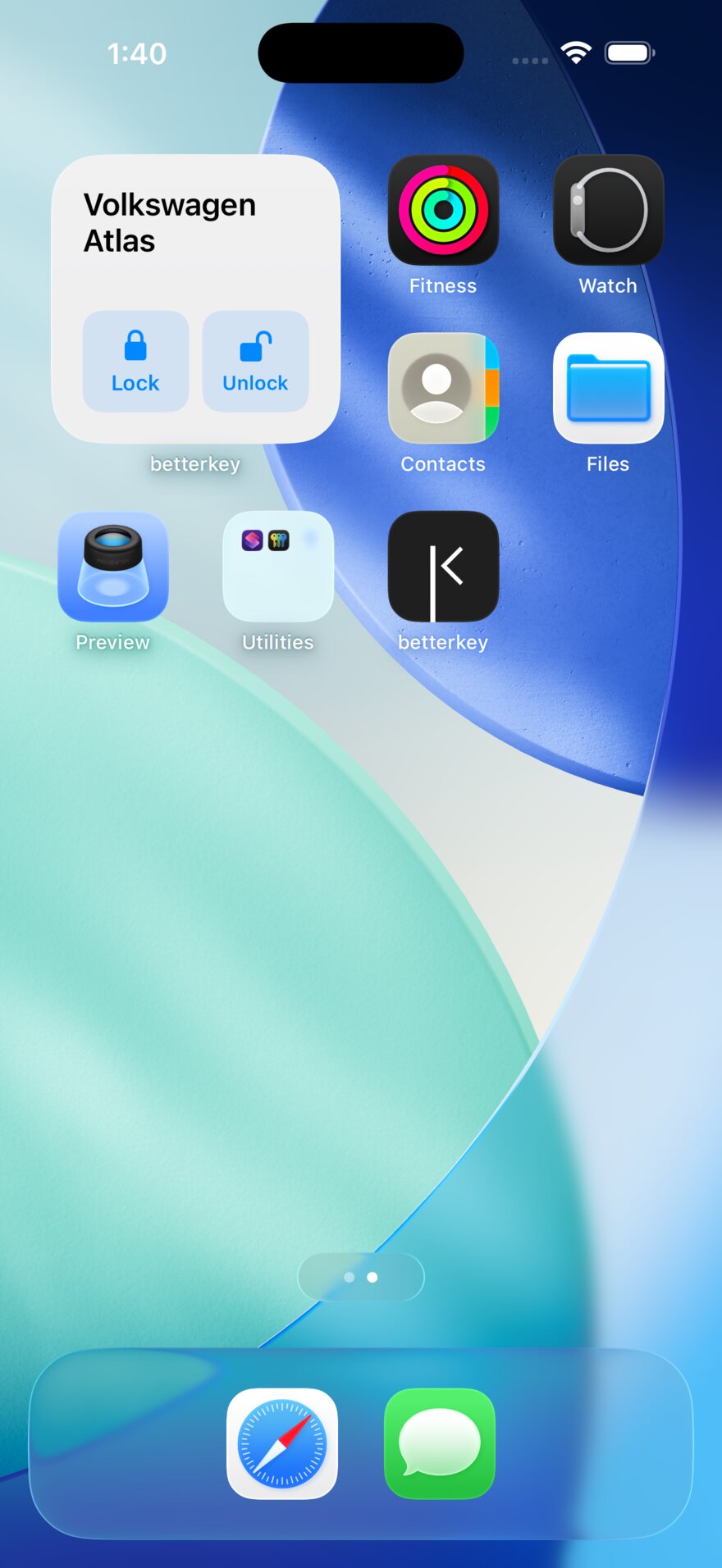
Home Screen walkthrough
Open the widget gallery
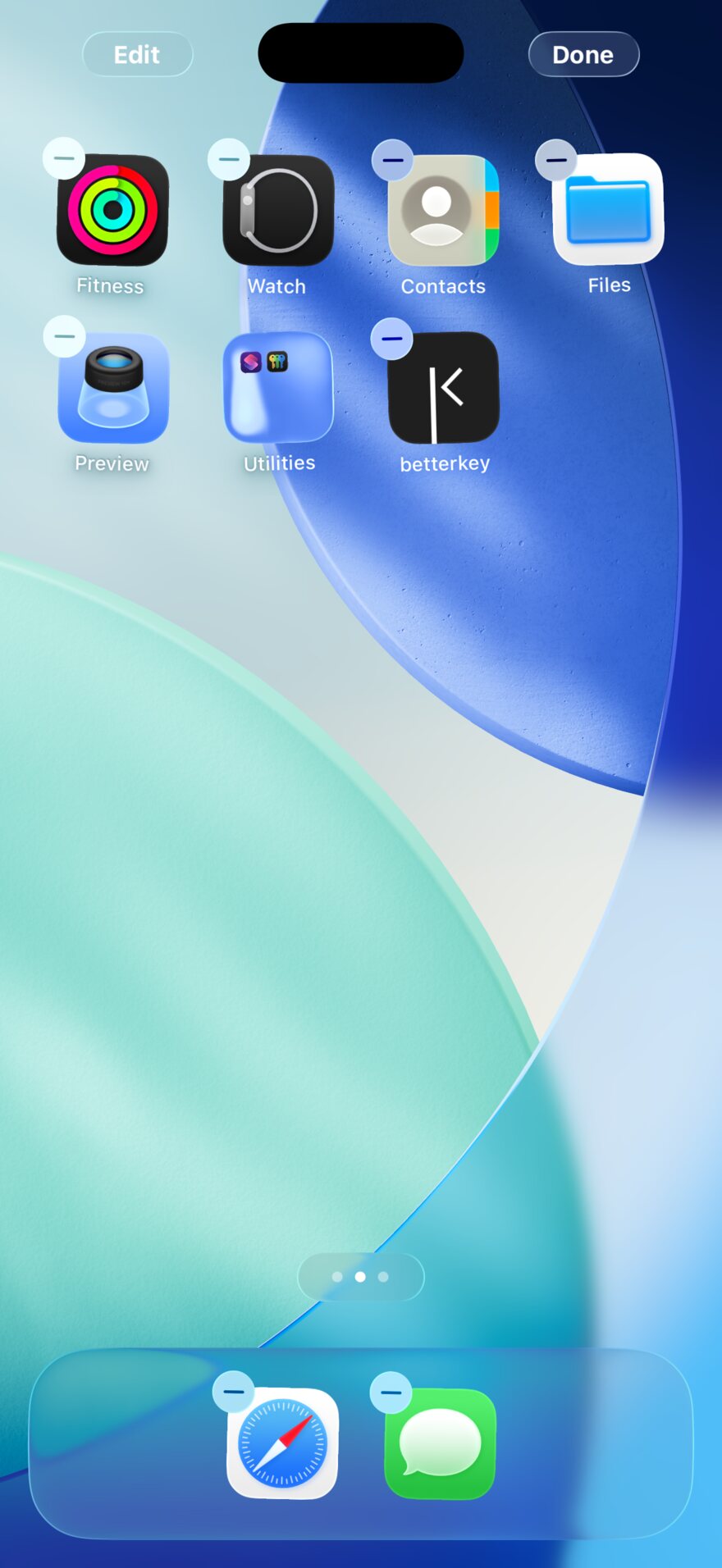
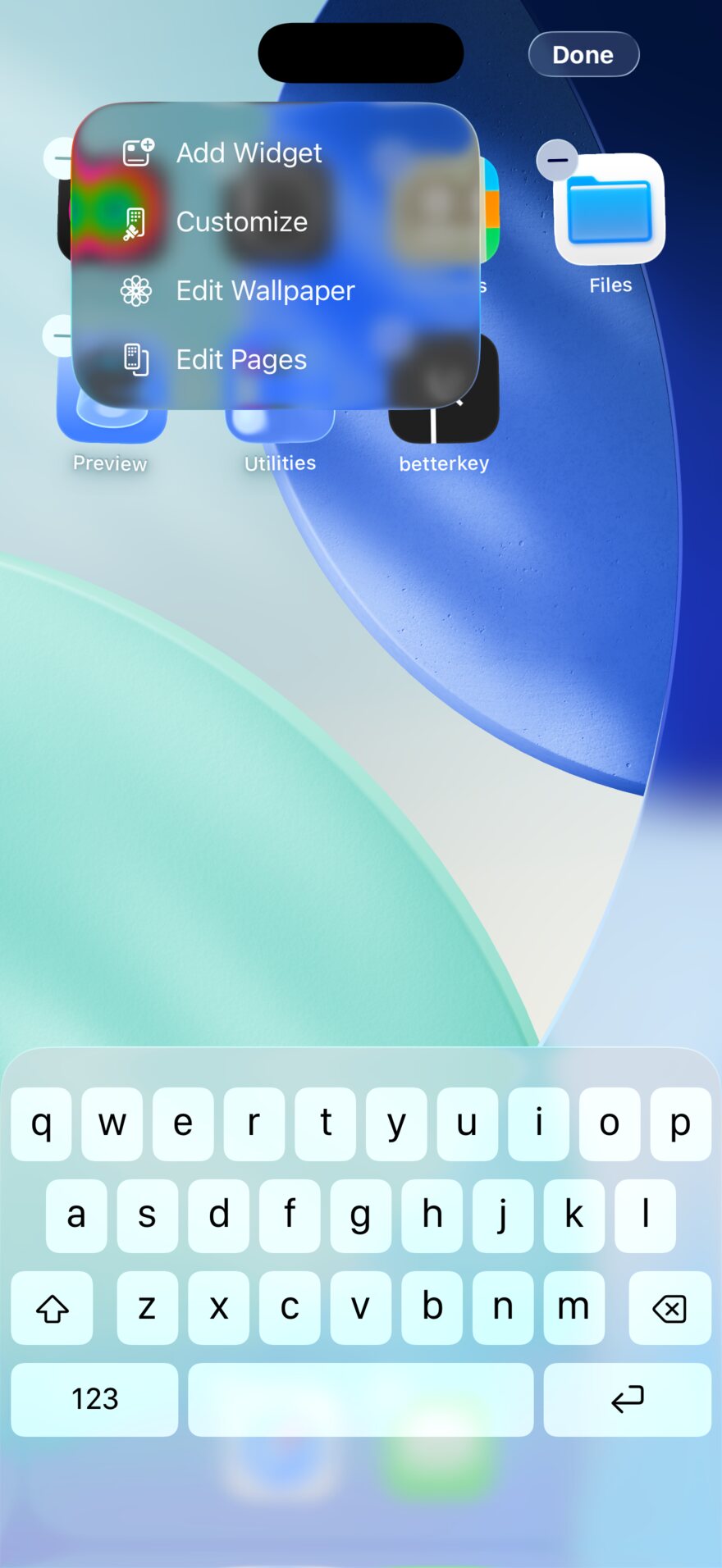
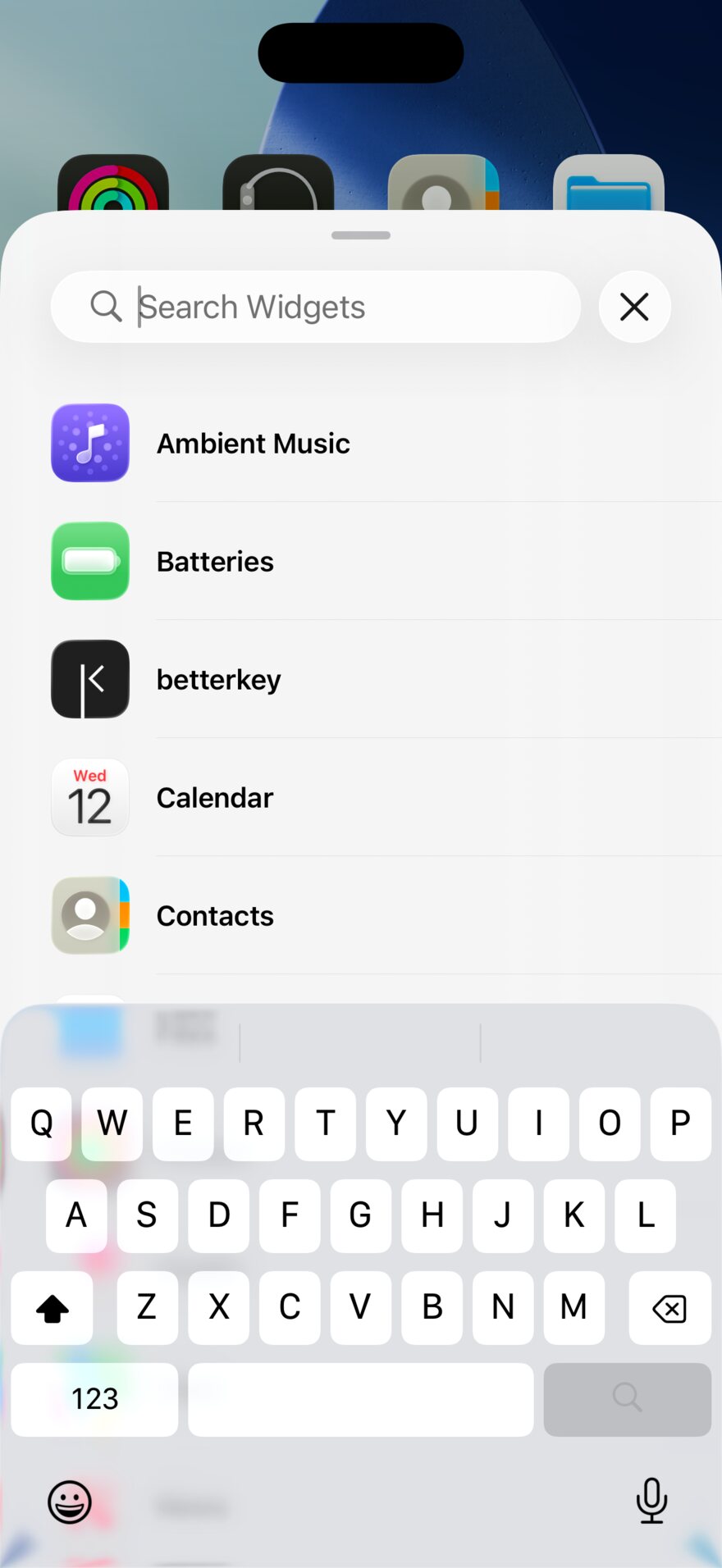
Choose a widget and size
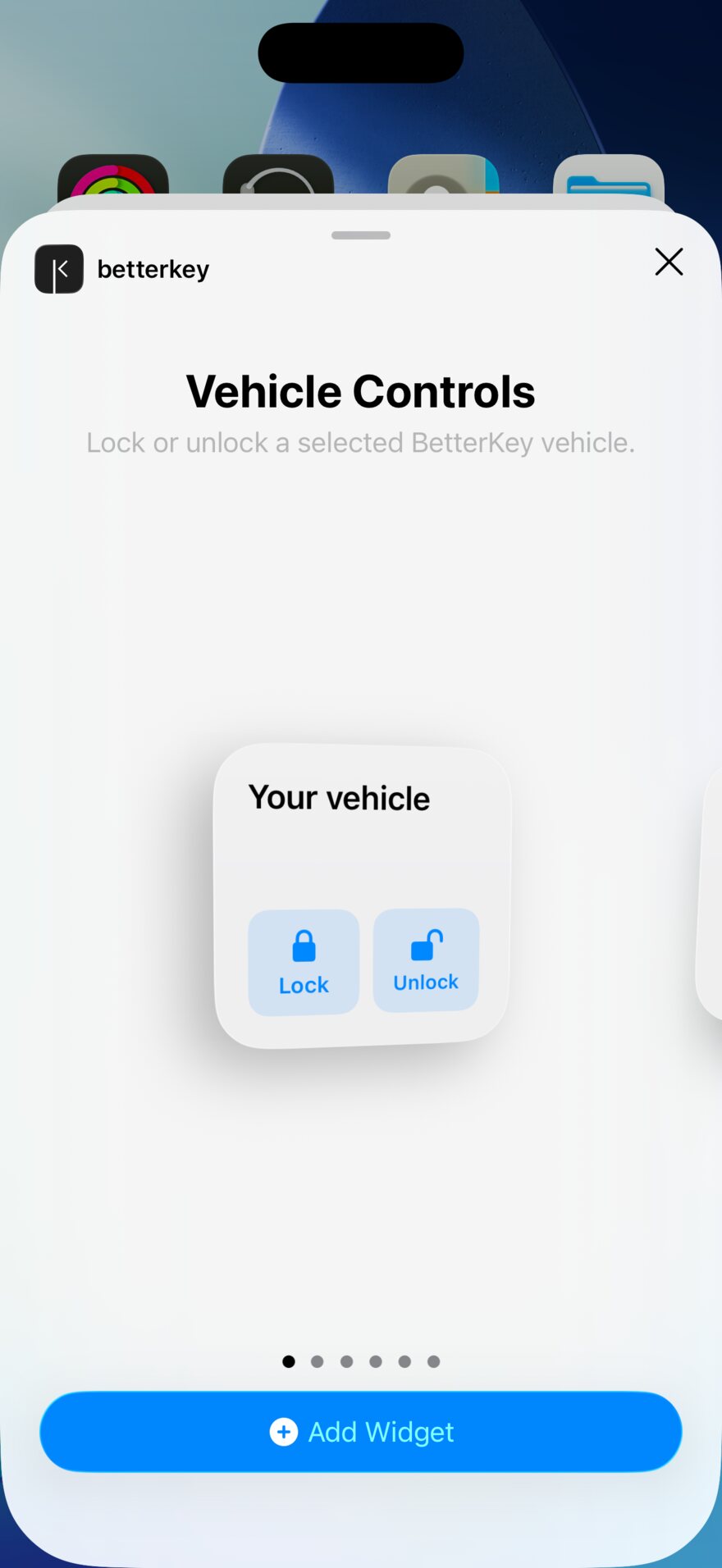
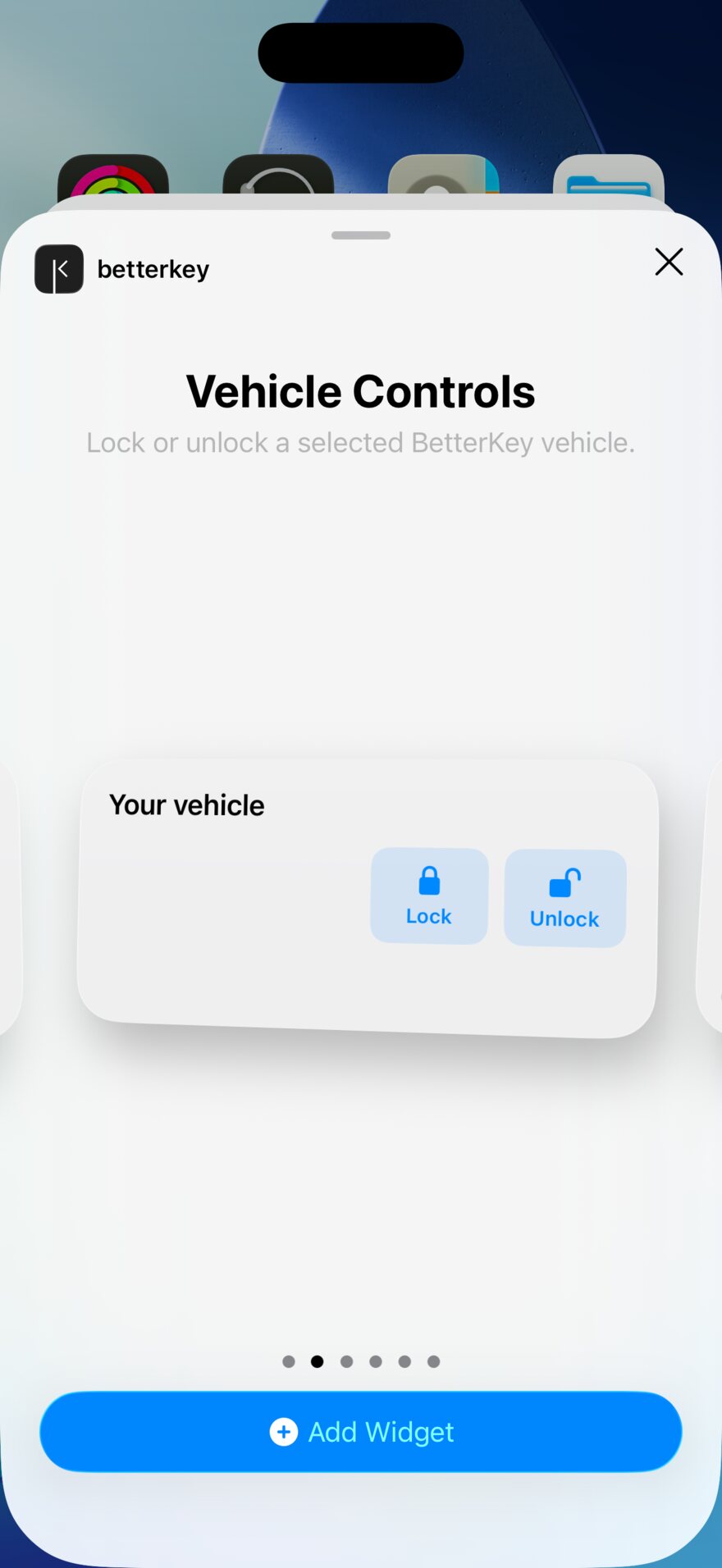
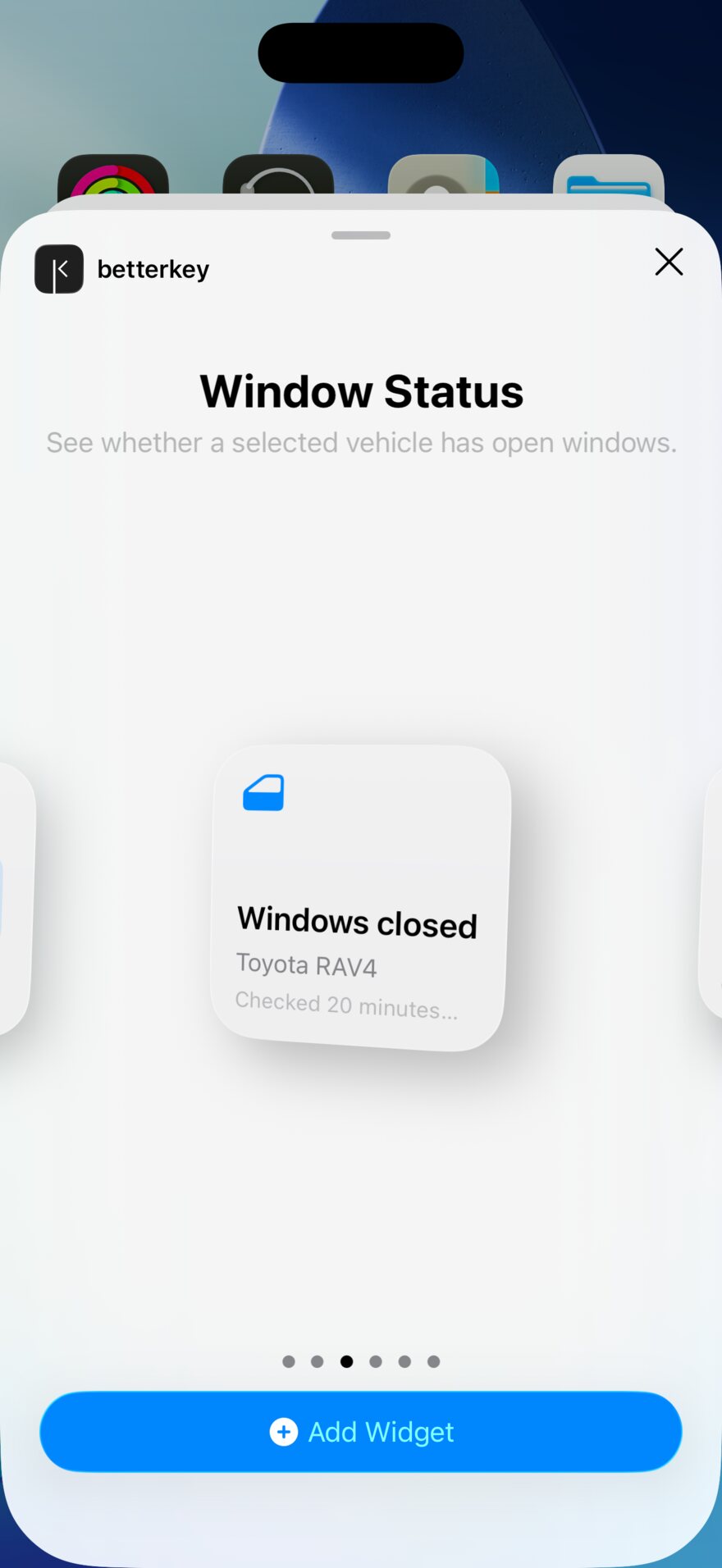
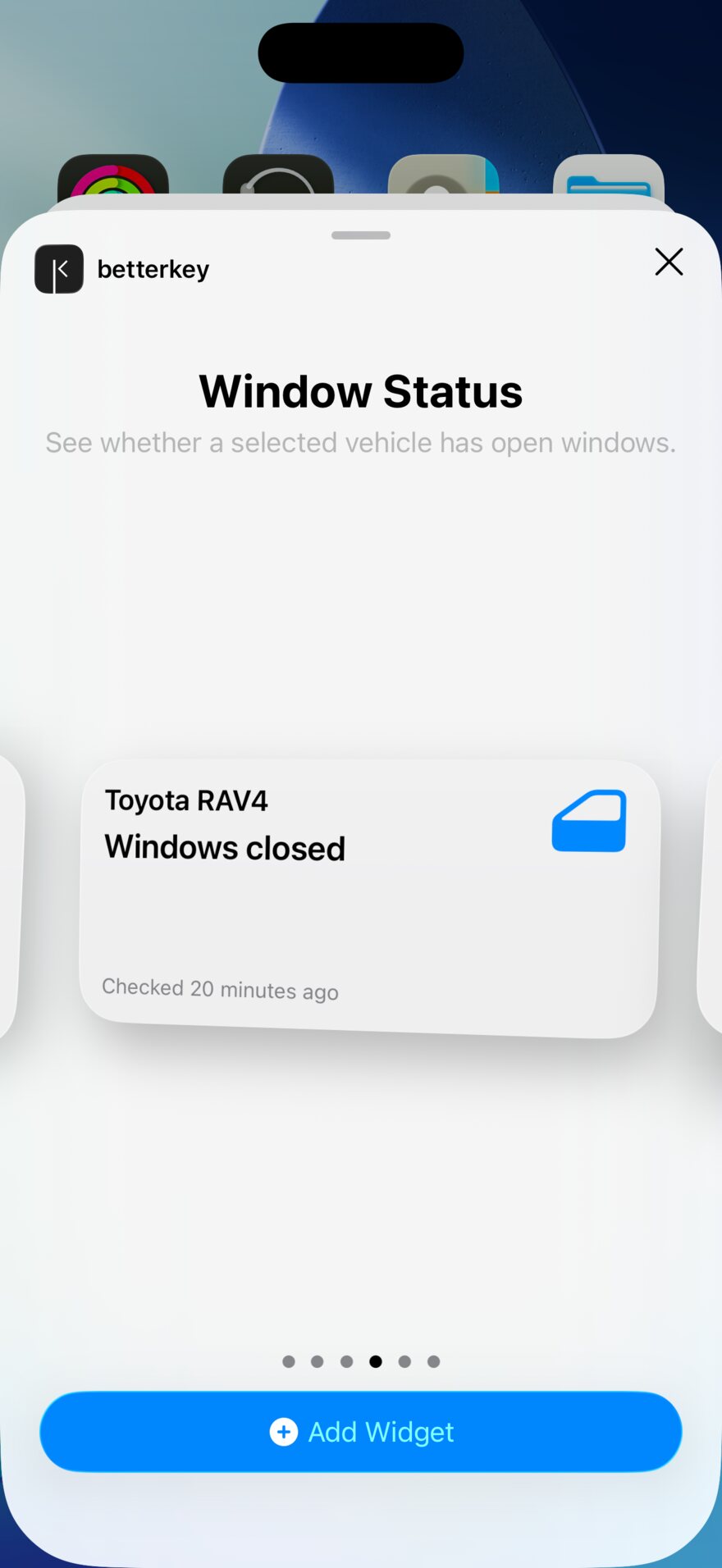
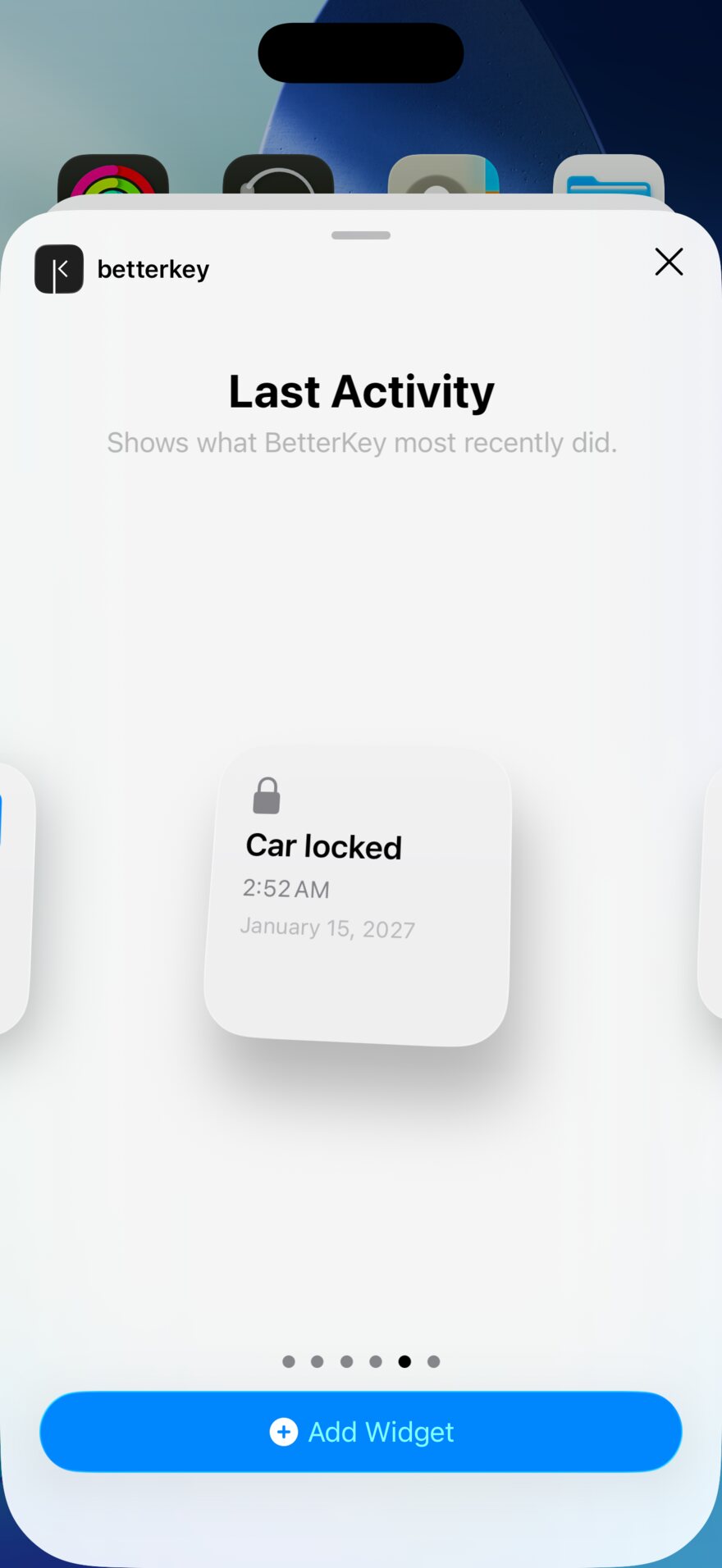
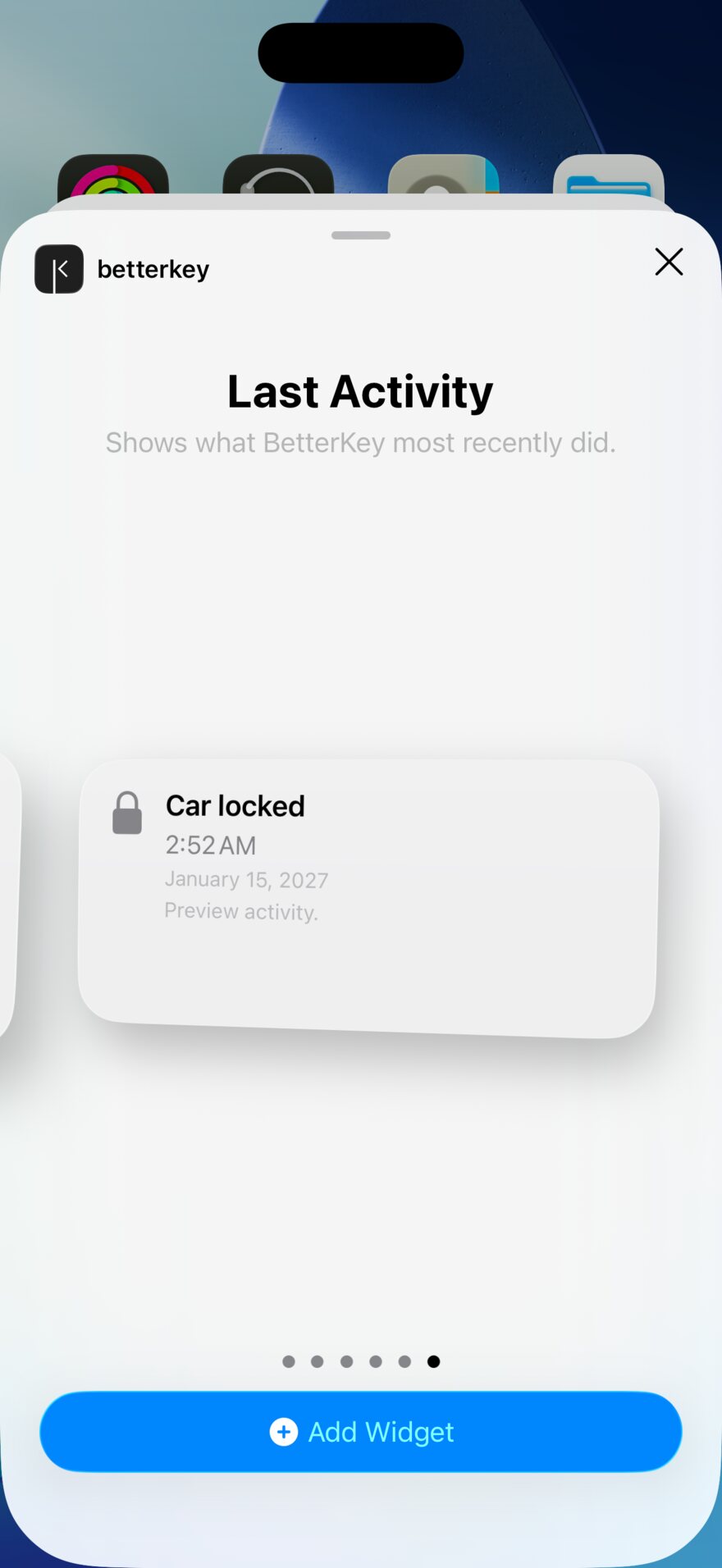
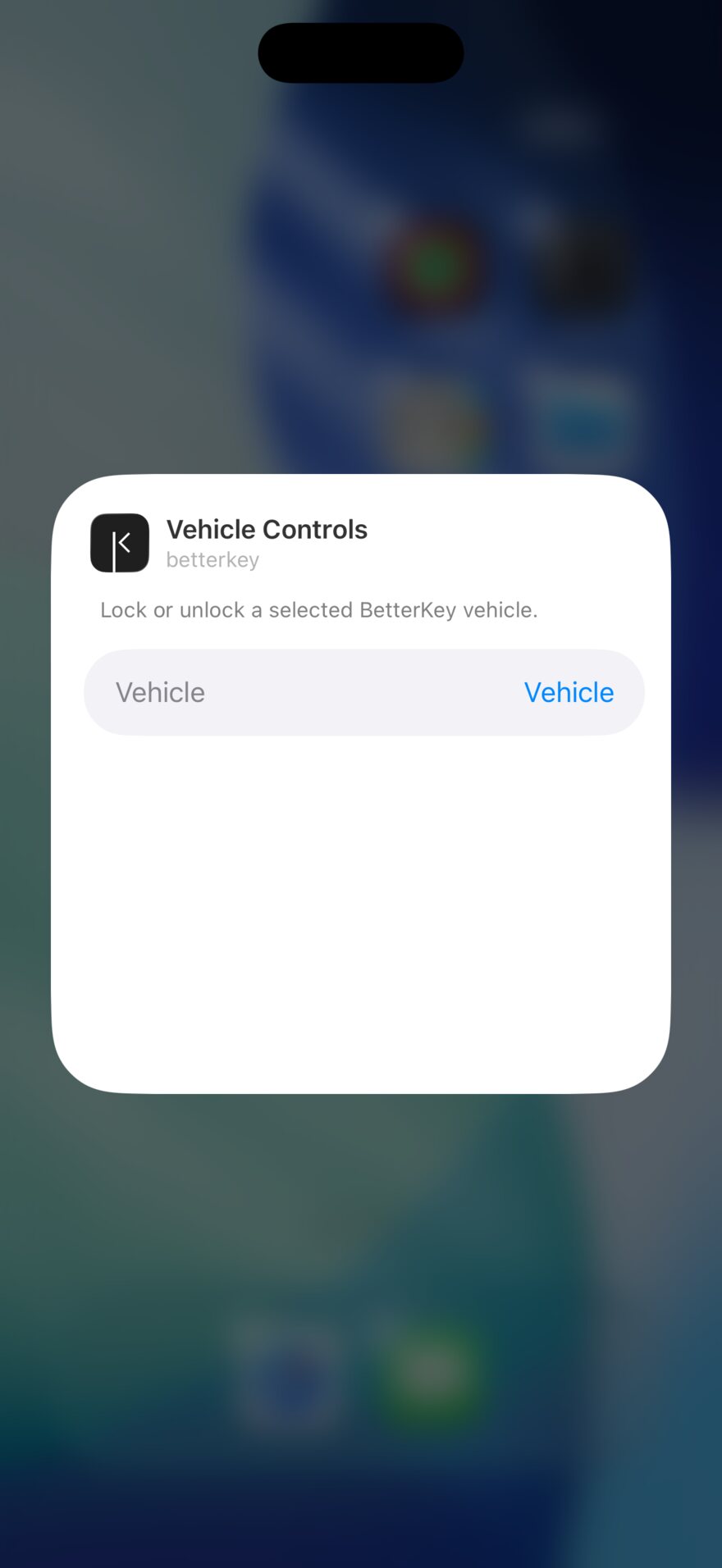
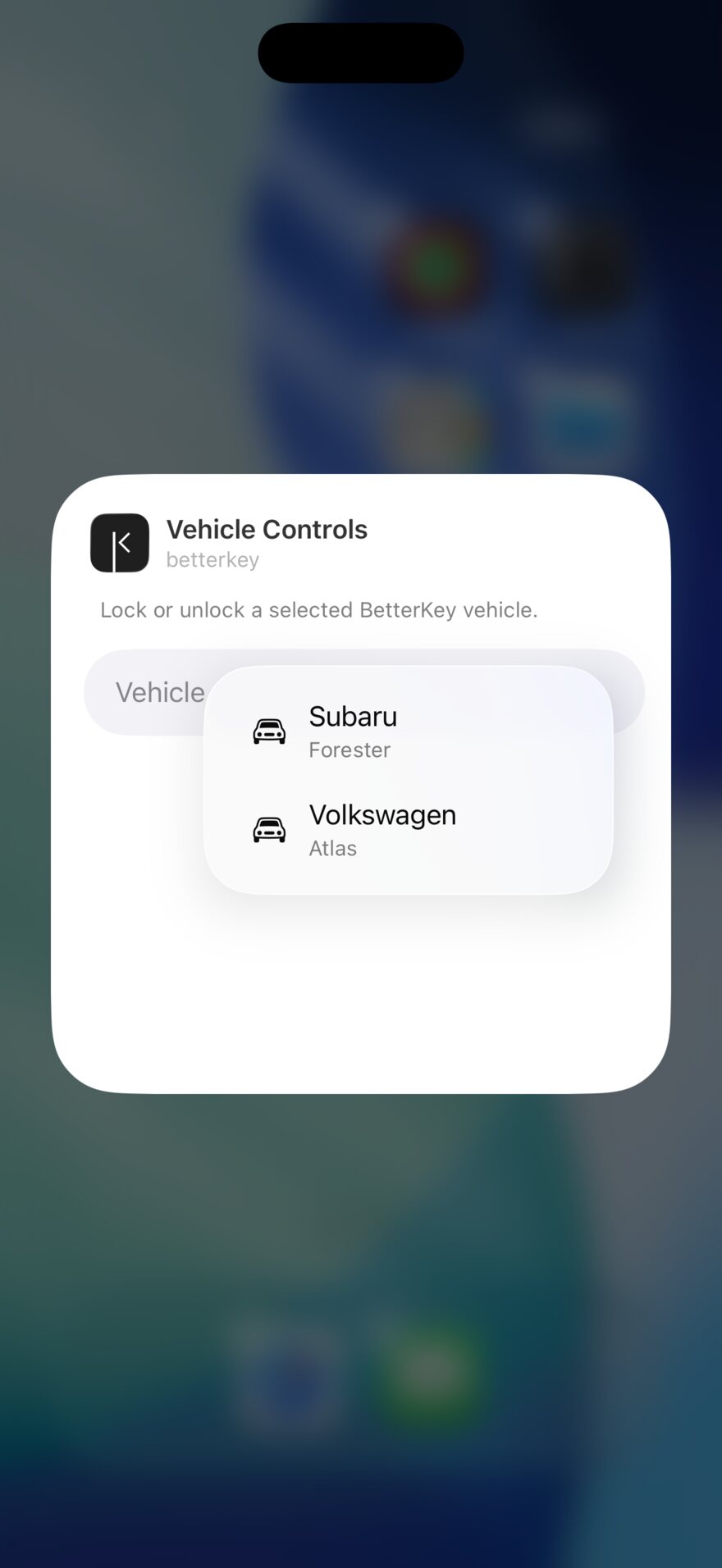
Choose the vehicle
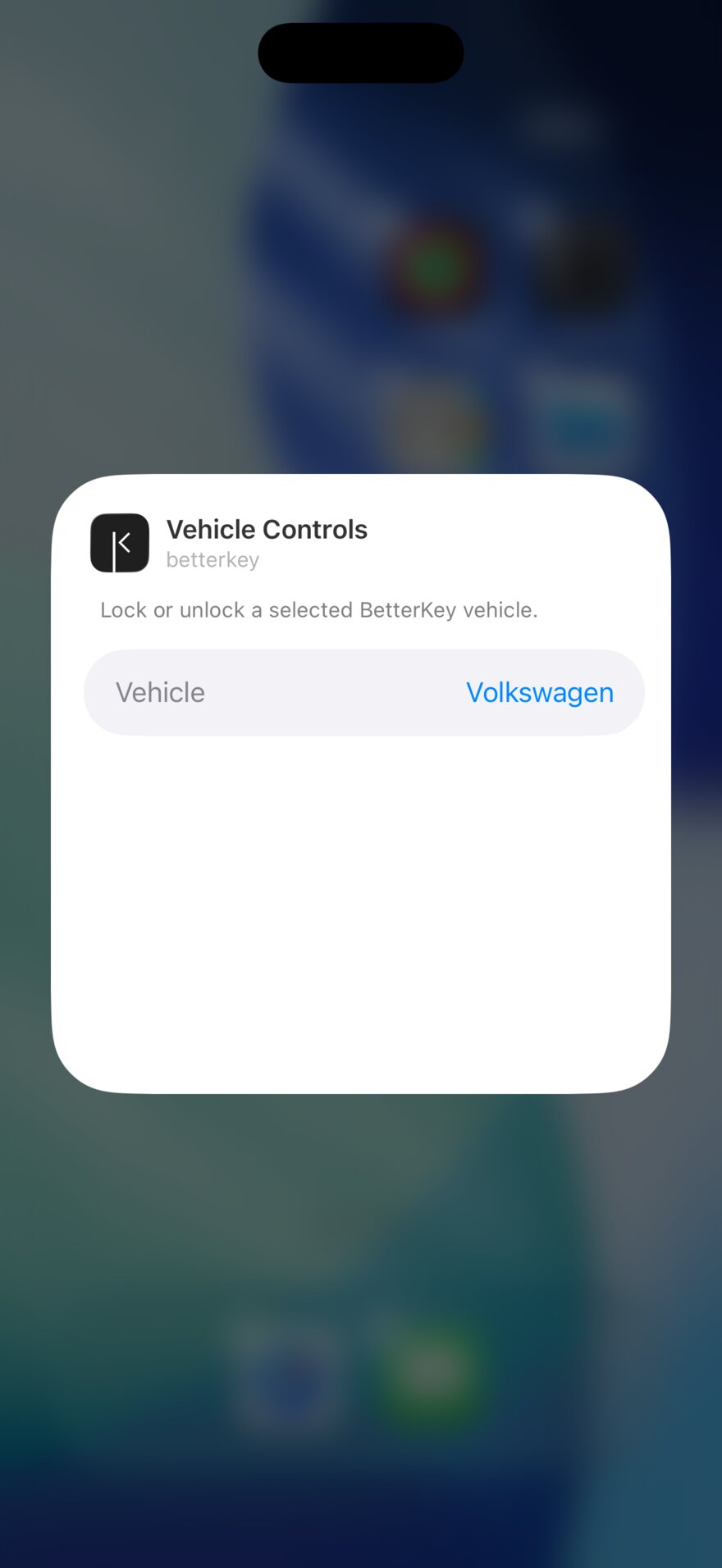
Position the widget
Add a Lock Screen widget#
- Wake the iPhone, then touch and hold the Lock Screen until Customize appears.
- Tap Customize, choose Lock Screen, then tap the widget area below the clock.
- Select BetterKey, then tap or drag the layout you want into an available slot.
- Tap the placed widget to choose a vehicle when it is Vehicle Controls or Window Status.
- Close the picker, tap Done, and select the Lock Screen to use it.
Vehicle Controls is available in circular and rectangular slots. Window Status and Last Activity also support the inline slot above the clock and compatible StandBy layouts.
Add Lock or Unlock to Control Center#
- Swipe down from the top-right corner to open Control Center.
- Touch and hold an empty area, or tap the add button, to begin editing.
- Tap Add a Control, search for BetterKey, then choose BetterKey → Lock or BetterKey → Unlock.
- Select the vehicle that control should operate.
- Repeat the steps if you want both actions or controls for another vehicle.
You can also replace a Lock Screen control with BetterKey Lock or Unlock while customizing the Lock Screen. On supported iPhone models, open Settings → Action Button, choose Controls, then select a configured BetterKey control.
What happens when you tap#
- Vehicle Controls sends the selected Lock or Unlock command without opening BetterKey.
- Window Status opens the selected vehicle in BetterKey when tapped. BetterKey shows the latest window reading it has and when that reading was updated.
- Last Activity opens BetterKey’s Activity screen. It reads the seven-day Activity history stored on the iPhone and does not contact the vehicle.
- Lock and Unlock controls use the same BetterKey command path as the app. BetterKey needs an internet connection and an active Free Week or subscription after setup.
For operating details and limitations, see Widgets and controls in the BetterKey Owner’s Manual.
FAQ
Why is BetterKey missing from the widget or controls gallery?
Open BetterKey once after installing or updating it, then return to the gallery. Confirm that BetterKey is still installed and your iPhone is running iOS 18 or later.
If BetterKey is still missing, restart the iPhone and try again. If it does not appear after the restart, contact us and we will help you finish setup.
Why is my vehicle missing from the picker?
Vehicle Controls lists the connected vehicles available to lock or unlock. Window Status lists the connected vehicles that BetterKey supports for window readings.
Open BetterKey and confirm that the vehicle appears on the Cars screen, then complete any reconnect message. If the vehicle is listed as supported on the compatibility page but remains missing, contact us.
Why does the widget say Choose a vehicle or Unavailable?
Touch and hold the widget, choose Edit Widget, and select a vehicle. On a Lock Screen, enter Customize mode, tap the placed widget, and select the vehicle there.
If a vehicle is already selected, open BetterKey, refresh that vehicle, and complete any reconnect message. Return to the widget after BetterKey shows the vehicle again. If the widget remains unavailable, contact us.