BetterKey
BetterKey app icon

Siri + Shortcuts

Your car,
on command.

Use your voice or automations to control your car with BetterKey.

“Lock my car.”
“Unlock my car.”
“Lock all my cars.”

Built with native App Intents for iPhone and Apple Watch. Read how it works →

Try BetterKey free for 1 week.

Download on the App Store

One set of commands, everywhere

Use the same BetterKey commands with Siri or the Shortcuts app on any Apple device.

Set up automations that fit the routines you already have.

Add a nightly lock check for peace of mind. See example →

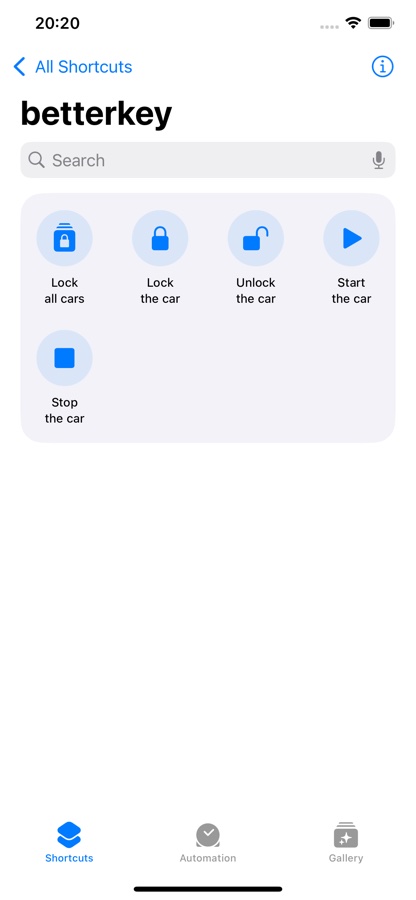
Available commands

  • Lock car
  • Unlock car
  • Lock all cars
Siri and Shortcuts setup screen in BetterKey

Schedule an automatic lock or unlock for your car

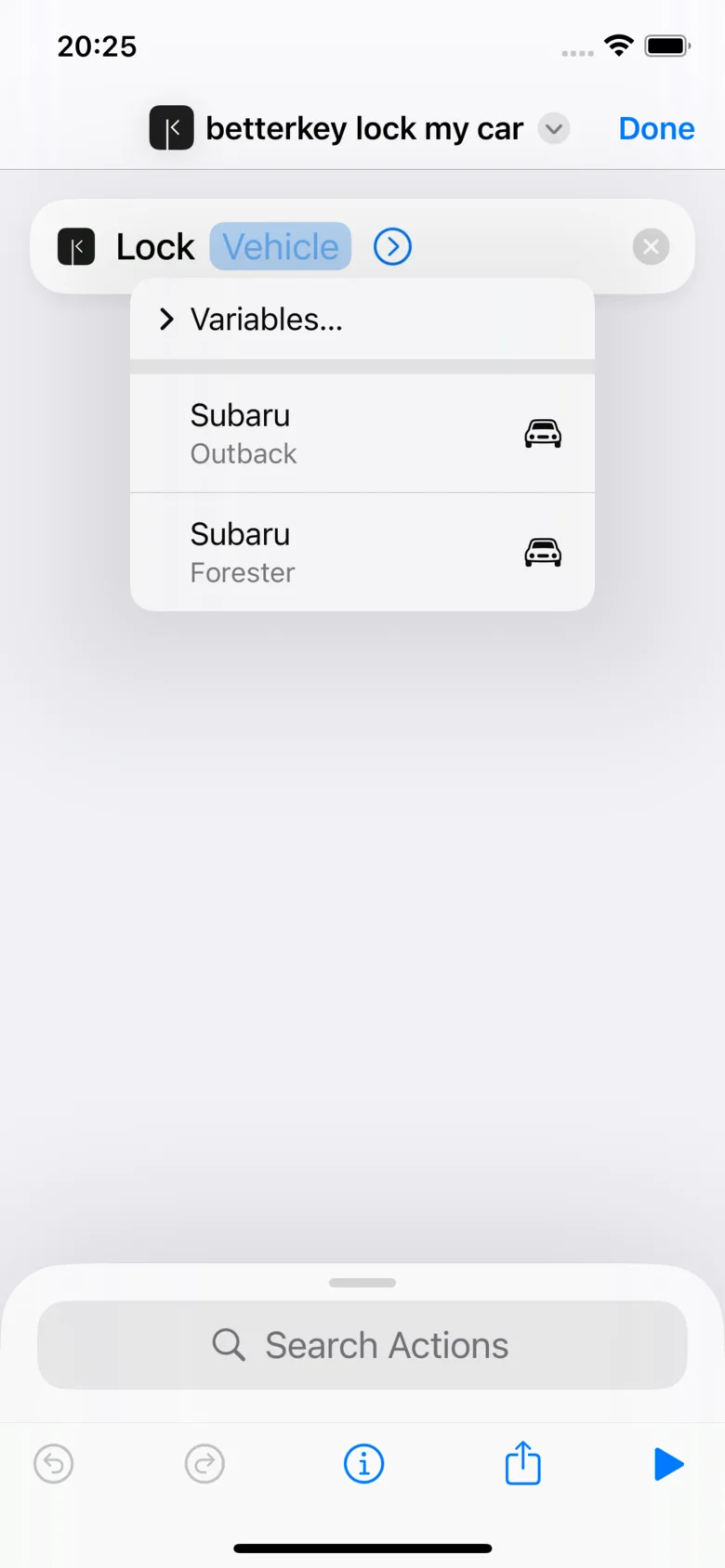
  1. Open the Shortcuts app and find the BetterKey shortcut you want to use (like Lock my car or Unlock my car).
  2. Duplicate it (tap and hold, then choose Duplicate).
  3. In the copy, tap the Vehicle field and select your car.
  4. Make sure your car's name shows up in the shortcut - if it does, you're good!
  5. Head over to Automations, set your schedule, and pick Run Shortcut - then choose the shortcut you just made.
Shortcuts automation action with the Vehicle parameter opened for selection

FAQs

Which Siri commands does BetterKey support? +

BetterKey supports Lock, Unlock, and Lock All via Siri and the Shortcuts app.

Can I automate these commands in Shortcuts? +

Yes. Use BetterKey actions in scheduled routines, CarPlay events, or Focus-based triggers.

Do all commands run without authentication? +

No. Unlock requires local device authentication. Lock and Lock All are always allowed.

Does this work on Apple Watch too? +

Yes. BetterKey includes native App Intents for both iPhone and Apple Watch.

Try BetterKey free for 1 week.

Download on the App Store