
Owner's Manual
How BetterKey works, what it depends on, what to expect, and where its limits are.
- Edition
- First Edition
- Last updated
- Applies to
- iOS 18 or later, watchOS 11 or later
This manual explains how BetterKey behaves. It does not replace the Terms of Service or the Privacy Policy. For step-by-step tasks and troubleshooting recipes, see Help.
About BetterKey
BetterKey is an app for iPhone and Apple Watch that adds remote lock, unlock, and passive automation on top of your existing car. It relays commands to your vehicle through the same connected-services layer your car already supports.
BetterKey is built around the idea that a good car app is one you rarely need to open. Its automations watch for small oversights, an unlocked car you have walked away from, a window left open, and offer a nudge or an action before they turn into bigger problems.
What BetterKey is not
- Not a Bluetooth digital key. Your iPhone does not open the car by proximity.
- Not a manufacturer-issued digital key. It does not replace an Apple Wallet car key.
- Not a replacement for your physical key or the automaker's own app.
- Not a security system, alarm, or vehicle tracker.
Always keep your physical key and the automaker's own app available. BetterKey depends on services outside its control and cannot guarantee that a command will succeed.
Before You Begin
You need the following to use BetterKey:
- An iPhone running iOS 18 or later.
- An Apple ID for Sign in with Apple.
- A cellular or Wi-Fi internet connection on your iPhone.
- A supported vehicle with active connected services from its automaker. See Compatibility for the current list of makes and models.
- The credentials for your automaker's connected-services account.
Apple Watch support is optional. If you have an Apple Watch running watchOS 11 or later, a BetterKey watch app is available. It may install automatically when Automatic App Install is enabled on your watch; otherwise install it from the Watch app on your iPhone. Once installed, the watch app runs independently on the watch.
BetterKey includes a Free Week of full vehicle control. A paid subscription is required after Free Week to keep controlling your vehicle. See pricing for current plans.
How Commands Reach Your Vehicle
When you tap Lock or Unlock in BetterKey, the command travels through several independent systems before it reaches your car. Each hop is a real dependency and a possible source of delay or failure.
- Your iPhone or Apple Watch sends the command to the BetterKey service over the internet.
- BetterKey forwards the request to a connected-services provider that speaks to your automaker.
- The provider relays the command to your automaker's telematics servers.
- The automaker delivers the command over its cellular link to the modem in your vehicle.
- The provider returns a response indicating whether it accepted the request and passed it on. A successful response means the command was sent to the vehicle, not that BetterKey independently observed the physical state change.
A command can slow down or fail at any hop. Your iPhone can lose signal. A provider can time out. An automaker's servers can be unavailable. Your car can be in an underground garage with no cellular reception. BetterKey surfaces the result it receives, but it does not control the links in the middle.
BetterKey does not open the car by Bluetooth. Being near your car does not make commands faster or more reliable. The car receives the command over its own cellular modem, not from your phone.
The Homebridge integration described in Chapter 8 is read-only. It receives Parked at Home events through a separate API path and does not enter this command chain.
Connecting and Managing a Vehicle
Adding a vehicle
From the Cars tab, tap Connect my car. BetterKey opens the connected-services provider's consent flow inside the app. Sign in with your automaker credentials and grant the requested permissions. Your credentials are handled by the provider and are not shared with BetterKey.
BetterKey adds all supported vehicles the connection authorized, up to the account limit (currently two vehicles, independent of subscription tier). If the authorization contains more vehicles than you have free slots, BetterKey asks you to pick which one to connect. Your subscription tier affects which vehicles you can send commands to after they are connected, not whether they can be added. Connected vehicles appear on the Cars tab.
For a step-by-step walkthrough with screenshots, see the Add Your Car guide.
Removing a vehicle
Remove a vehicle from BetterKey by opening it in the Vehicles tab and choosing Remove. BetterKey stops sending commands immediately.
To fully revoke BetterKey's access to your vehicle at the automaker level, also remove the connection from your automaker's connected-services account. See Chapter 11 for details.
Locking, Unlocking, and Command Timing
Lock and Unlock
Tap Lock or Unlock on a vehicle card. BetterKey shows a progress indicator while the command travels through the chain in Chapter 3. The progress indicator means BetterKey is waiting for a result. It does not indicate the vehicle's physical lock state.
Understanding command results
When a lock or unlock request finishes, BetterKey reports one of the following outcomes. Each outcome describes what BetterKey learned from the command chain, not a direct observation of the locks.
| Result | What it means | What to do |
|---|---|---|
| Locked or Unlocked | The connected-services provider accepted the request and reported success. BetterKey updates the vehicle card to the requested state. This is the strongest result BetterKey receives, but it is not a direct sensor reading of the locks. | No further action is normally needed. When the physical state matters, verify it at the vehicle. |
| Request sent | The request was sent toward the vehicle, but final confirmation from the provider or automaker was not available. The command may still have been applied. BetterKey does not claim that the vehicle is locked or unlocked. | Check the vehicle before relying on the result. If needed, use the automaker's app or try the same command again after connectivity improves. |
| Failed | BetterKey did not receive a result it can treat as accepted. It does not update the vehicle card to the requested state. A failure still does not establish the vehicle's physical state. | Follow the error shown in the app. If the state matters, verify it at the vehicle, then work through Chapter 12. |
Timing
Command round-trip time typically takes a few seconds to a minute or more. Latency depends on the automaker, the vehicle's cellular reception, and current provider load. BetterKey does not shorten the time it takes for the car to respond.
BetterKey requests the latest values available from the connected service. Depending on the automaker, a vehicle location may be newly retrieved or may be its most recent cached or last-known position. When a location timestamp is available, use it to judge how fresh the location is.
Current Features and Automations
Park Location, Lock on Depart, Open Window Alert, and Prompt to Unlock are optional and off by default. You enable each one from Settings and grant any permissions it needs. They run best-effort and depend on the same chain described in Chapter 3. Find My Car and Activity are views of information BetterKey has already saved or recorded.
Park Location
Remembers the last place BetterKey confirmed a connected car was parked. See Park Location.
Requires: Always location, Motion & Fitness.
| Starts when | Your iPhone recognizes a likely end of a trip from a combination of signals such as driving ending, a sustained stop, walking, vehicle audio or CarPlay disconnecting, and an iOS visit event. One signal by itself is not treated as a confirmed park. |
|---|---|
| Information used | Motion and location signals from your iPhone, followed by a request for the latest locations available for one or more connected vehicles that support location. Depending on the automaker, a location may be newly retrieved or may be a cached or last-known position. BetterKey confirms the park only when a vehicle is reported within 100 meters of the iPhone's inferred parking spot. |
| Where it runs | The parking inference runs on your iPhone, including during brief background wakes granted by iOS. Confirming the vehicle requires an internet request for its reported location. |
| Action | Saves the vehicle's reported location as that vehicle's latest Park Location and makes it available to Find My Car, Lock on Depart, Open Window Alert, and Prompt to Unlock. |
| When it does nothing | BetterKey does not save a new spot when the parking evidence is not strong enough, no usable device coordinate is available, no location-capable connected vehicle is reported nearby, or the vehicle-location check cannot finish. The last confirmed spot remains. |
| Stored and shown | The latest confirmed spot and its vehicle association are stored on your iPhone. BetterKey does not build a route history. A saved-park observation appears in Activity for seven days; when notifications are enabled, BetterKey also requests a notification naming the vehicle. |
Find My Car
Locates your vehicle, shows the destination on a map, and helps you walk or request a ride back to it. See Find My Car.
Requires: A connected vehicle that supports location. Park Location is optional.
| Location shown | When a confirmed Park Location is available, BetterKey shows it. Otherwise it shows the last-known vehicle location retained on this device, even when that reading is older than BetterKey's approximately one-hour request freshness window. Opening Find My Car does not query the connected service when either location is available. If this device has no usable saved location, BetterKey requests an initial vehicle location and retains a successful result. |
|---|---|
| Card and detail previews | The map on an expanded vehicle card and in Vehicle Detail follows the same order: confirmed Park Location, then the last-known vehicle location retained on the device. If neither is available, the preview requests an initial vehicle location. A successful result is cached; a failed or invalid result shows a no-location placeholder. |
| Refresh | Tap the location status above the map to clear BetterKey's cached reading and ask the connected service for the latest location it can provide. This does not guarantee that the automaker will produce a new GPS reading. If a newer vehicle reading shows that the car moved more than 50 meters, BetterKey clears the old Park Location and uses the newer destination. |
| Directions | On iPhone, Find My Car can open walking directions to the destination in Apple Maps or Google Maps. Your current device location is used as the starting point when it is available. Opening directions or a ride request records a receipt in Activity for seven days. |
| Ride request | Find My Car can open Uber or Lyft with the vehicle's location filled in as the destination and your current location as the pickup when available. BetterKey does not book or charge for the ride; you review and confirm it with the ride provider. |
| When it is unavailable | Find My Car cannot provide a destination when the vehicle does not support location, its location is unavailable or invalid, or the internet, provider, automaker, or vehicle cannot complete the request. |
| Stored and shown | The map distinguishes the saved Park Location, the vehicle's reported location, and your device location. A confirmed spot is labeled “Parked” with its age. A parseable vehicle timestamp is labeled “Car location updated” with its age; an unreadable timestamp is labeled “Last known location.” Refreshing does not create a route history. Map and ride services receive the coordinates needed to open the directions or ride request you selected. |
Lock on Depart
Sends a lock command after BetterKey confirms which vehicle you parked and that you walked away. See Lock on Depart.
Requires: Park Location.
Lock on Depart does not measure how far you walked or wait for your iPhone to cross a departure geofence. BetterKey treats either of two motion events as evidence that you left: iOS reports that your activity changed to walking or running, or Motion & Fitness records at least 15 steps during the first 60 seconds after driving ends. Apple does not publish a fixed step count for its walking or running classification, so that path may be recognized before the 15-step threshold is reached.
- Park Location identifies a likely park, matches it to a specific connected vehicle, and records when that match was confirmed.
- Lock on Depart checks whether the parking evidence already includes an iOS walking or running classification, or a post-trip burst of at least 15 steps.
- If either departure signal is already present, BetterKey continues immediately. If not, it listens for one for up to ten minutes. When neither arrives, the attempt ends without locking.
- Before acting, BetterKey verifies that the features are still on, the parking event is still current, no duplicate lock was recently attempted, and, when supported by the connection, the engine is reported off.
- BetterKey sends one lock command through the same command chain as a manual lock, then records and reports the result.
| Starts when | Park Location confirms a specific vehicle and BetterKey has one of the two departure signals described above from after that park. When the parking evidence already includes one, the lock can begin immediately. Otherwise BetterKey waits up to ten minutes for either signal. |
|---|---|
| Information used | The confirmed Park Location, iPhone motion signals, current feature state, and, on connections that support it, the vehicle's reported engine state. The lock uses the same internet and automaker command chain as a manual lock. |
| Where it runs | Your iPhone recognizes the departure during Park Location's background activity. The lock then travels through BetterKey, the connected-services provider, and the automaker as described in Chapter 3. |
| Action | Sends one lock command, then records and reports the result. |
| When it does nothing | BetterKey suppresses the lock when Lock on Depart or Park Location is off, no walking signal arrives in time, the park is stale, a supported engine-state check reports the engine running, or a duplicate attempt occurs within 30 seconds. |
| Stored and shown | The outcome is recorded in Activity for seven days and, when notifications are enabled, delivered as a completion or failure notification. A Live Activity may show locking progress. After a confirmed lock, it remains briefly so you can see the result, then makes way for the notification. If notifications are unavailable, iOS may retain the completed Live Activity for longer. Unconfirmed and failed results also remain available longer when iOS permits. Interpret the lock result according to Chapter 5; a request accepted without final confirmation is not proof of the physical lock state. |
Open Window Alert
Compares the precipitation forecast at your saved Park Location with the vehicle's reported window state. See Open Window Alert.
Requires: Park Location. The alert is delivered as a notification; when notifications are off, the event still appears in Activity.
| Starts when | BetterKey becomes active, or immediately after Park Location confirms a vehicle during a background wake iOS already provided. It does not monitor the forecast or the windows continuously. |
|---|---|
| Information used | The saved Park Location, the precipitation forecast for the next six hours at that coordinate, and the window state reported by the automaker. Window readings with a missing or unreadable timestamp, or readings more than 24 hours old, are not used. |
| Where it runs | The comparison runs on your iPhone. Weather and window information are requested only when a check runs. |
| Action | Creates an alert only when precipitation is forecast and at least one window is reported open. The alert names the vehicle, counts the open windows, and includes both the expected precipitation time and the time of the window reading. BetterKey does not close windows. |
| When it does nothing | No alert is created when there is no saved coordinate, the forecast is clear, every reported window is closed, the weather or window request fails, the window reading is too old, or BetterKey already alerted for that vehicle within the previous two hours of the current app session. |
| Stored and shown | BetterKey does not create a continuous weather or window-state history. The alert observation appears in Activity for seven days. When notifications are enabled, the same information is delivered as a notification. |
Open window count on vehicle cards
Each vehicle card in the BetterKey iPhone and Apple Watch app can show a small warning-triangle indicator beneath the vehicle's name that reads a count such as “1 open window” or “2 open windows”. The count comes from the most recent window reading BetterKey has received from the automaker; it is not continuous monitoring.
Requires: A vehicle whose provider reports window status, connected with the security scope granted at connection time.
| When it appears | Only when the vehicle card is expanded, a recent reading exists, and at least one window is reported open. BetterKey fetches the reading once when the vehicle list becomes visible and again when the app returns to the foreground. |
|---|---|
| What it says | A warning triangle followed by a count with the phrase “open window” or “open windows”. The indicator is informational and not tappable on its own; tapping the card still expands or collapses it. |
| When it hides | Nothing is shown when every reported window is closed, the reading is more than 24 hours old, no reading is available, the request failed, or the vehicle does not report window status. The absence of an indicator does not guarantee that the windows are closed. |
| Relationship to Open Window Alert | The card indicator is a passive count. It is not a rain alert. Open Window Alert is a separate, precipitation-driven notification and is described above. |
Prompt to Unlock
Offers a one-tap Unlock action when BetterKey recognizes that you are approaching a supported parked vehicle. See Prompt to Unlock.
Requires: Park Location, a provider-supported vehicle.
| Starts when | Park Location confirms a supported vehicle. BetterKey registers an approximately 100-meter approach area around the car, then looks for a closer approach near 35 meters or a clear trend toward the car. A prompt is considered only when motion does not indicate that you are driving. |
|---|---|
| Information used | The confirmed Park Location, iOS region monitoring, brief precision-location updates while you are near the car, Motion & Fitness, and the vehicle's eligibility for location-based connected services and remote unlock. |
| Where it runs | Approach detection runs on your iPhone. BetterKey's service asks Apple Push Notification service to start the Live Activity. The unlock command does not enter the command chain until you tap Unlock. |
| Action | Requests a Live Activity on the iPhone and a time-sensitive Unlock notification that also provides an action on Apple Watch. No unlock command is sent until you tap Unlock. The resulting command follows the semantics in Chapter 5. |
| When it does nothing | BetterKey does not prompt for an unsupported vehicle, a park without a usable coordinate, missing background location access, an approach that cannot be established, or motion that indicates driving. If both Live Activities and notifications are unavailable, iOS has no prompt surface to show. |
| Stored and shown | iOS holds the approach region on the device. BetterKey does not save your approach as a trip history. The prompt observation appears in Activity for seven days when BetterKey requests its notification. |
Activity
A seven-day log of BetterKey notifications, the commands you ran from the Cars screen, and durable Find My Car outcomes such as opening walking directions or a ride request to a parked vehicle. On iPhone, reached from the bell in the Cars tab toolbar, or by tapping the Last Activity Home Screen or Lock Screen widget. On Apple Watch, reached from the bell at the top left of the vehicle list, or by tapping the Last Activity complication. Entries record what BetterKey observed or was told (a command was accepted by the provider, an alert-worthy event was recorded, directions were opened, and when notifications were enabled a notification request was scheduled with iOS), not an independent read of the vehicle's physical state and not proof that a notification appeared on your screen. When the same BetterKey account is signed in on a paired iPhone and Apple Watch, the two devices exchange their retained Activity entries when WatchConnectivity is available. Each device keeps its own local copy and continues recording while the other device is absent or unreachable; recent entries reconcile after the devices reconnect. Activity from a different BetterKey account is not merged. See Activity.
Requires: No device permissions.
Automations and their notifications are best-effort. iOS decides when to wake background apps, and vehicle signals depend on your automaker. Do not rely on an automation firing at a precise moment.
Smart Home triggers
Smart Home triggers publish events to a supported smart-home integration when a real-world condition is met. They do not send commands to the vehicle. See Chapter 9 for the current triggers and how to set them up.
Widgets, Apple Watch, Siri, and Shortcuts
iPhone widgets and controls, Apple Watch, Siri, and Shortcuts are additional ways to use the same vehicles connected to your BetterKey account. They do not communicate directly with your car. Lock and unlock requests still follow the command chain in Chapter 3, and their results have the meanings described in Chapter 5.
Apple Watch
The BetterKey watch app shows your connected vehicles and lets you lock, unlock, or use Find My Car from your wrist. On paired watches running watchOS 11 or later, it may install automatically when Automatic App Install is enabled; otherwise install it from the Watch app on your iPhone. See Apple Watch.
| Vehicle controls | The watch app loads the vehicles connected to your BetterKey account. You can send Lock and Unlock from a vehicle card. The result describes the request BetterKey was able to complete; it does not turn the watch into a Bluetooth or proximity key. |
|---|---|
| Find My Car | For vehicles that support location, the watch can show the saved Park Location or latest available vehicle location, its reported timestamp, and your watch's location when permitted. You can refresh the vehicle location or open walking directions in Apple Maps. Ride requests are available from iPhone, not from the watch. |
| Connection | After installation and sign-in, the watch app can make its own internet requests over its available Wi-Fi or cellular connection; the iPhone does not need to be nearby. The watch, BetterKey, the provider, the automaker, and the vehicle must still be reachable. |
| Siri and Shortcuts | On Apple Watch, BetterKey publishes actions to lock one vehicle, unlock one vehicle, or lock all vehicles. When the watch is unlocked on your wrist, no additional authentication is required. If the watch is locked, watchOS asks you to unlock it before the action runs. |
| When it is unavailable | The watch cannot complete a request when it is offline, your BetterKey session needs attention, the selected vehicle or capability is unavailable, your subscription is required, or another part of the connected-services chain cannot respond. |
Set up complications on Apple Watch
With the watch face showing, touch and hold the display, tap Edit, then swipe to the complication slots. Select a compatible rectangular, circular, inline, or corner slot and choose BetterKey. Window Status requires one eligible vehicle per complication instance and offers an optional short label for the circular family. Last Activity needs no vehicle selection. You can also configure a face under My Faces in the Watch app on iPhone. See the step-by-step Apple Watch complication guide.
Window Status complication
For compatible vehicles, the BetterKey watch app publishes a Window Status complication that shows the vehicle's most recent window state on the watch face. Configure it by long-pressing the face, editing complications, and selecting BetterKey. See Open Window Alert for the related precipitation-driven notification.
Requires: A Smartcar-connected vehicle that reports window status, with the security scope granted at connection time. Coverage varies by make and model. See the compatibility grid for the current list. One vehicle per complication instance.
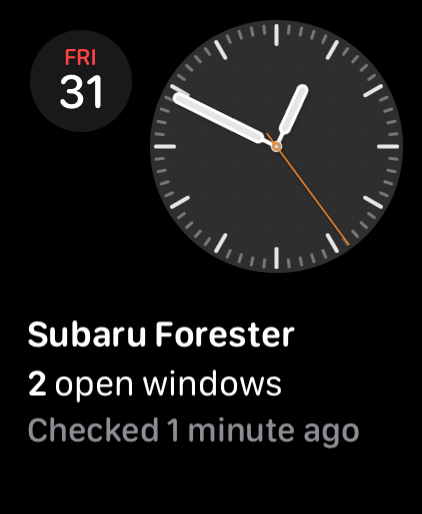
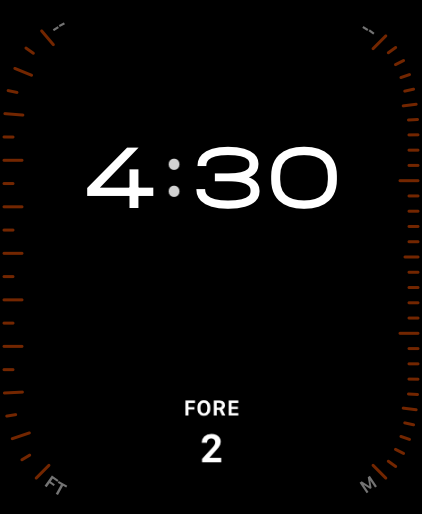
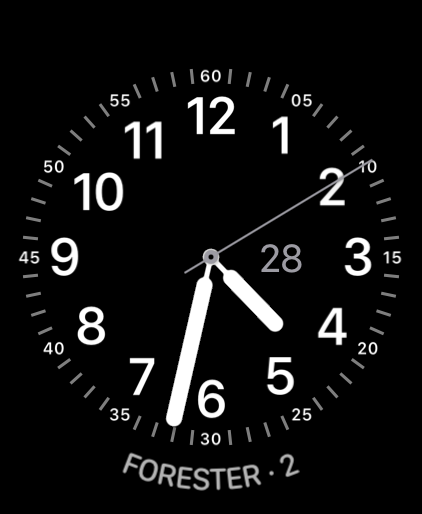
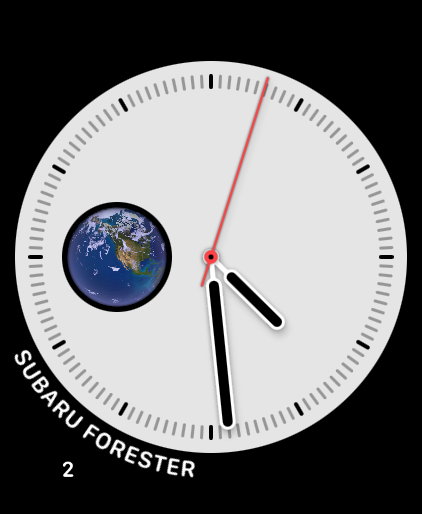
| State | Rectangular | Circular | Inline | Corner |
|---|---|---|---|---|
| All windows closed | A check mark, with the vehicle name and when the status was checked | A check mark under a short vehicle label | Vehicle name followed by “✓” | A check mark at the corner with concise vehicle identity and reading age along the arc |
| Windows open | The vehicle name, “1 open window” or “N open windows”, and when the status was checked | The count as a bold number under a short vehicle label | Vehicle name followed by “· N” | The count at the corner with concise vehicle identity and reading age along the arc |
| Stale: last known closed | “0 open windows” is shown; the last-checked line says how old the status is | A warning icon under the vehicle label | Vehicle name followed by “⚠” | A neutral window glyph with a small warning badge; the arc gives concise vehicle identity and age, such as “RAV4 · 2d old” |
| Stale: last known 1 open | “1 open window” is shown; the last-checked line says how old the status is | A warning icon under the vehicle label | Vehicle name followed by “⚠” | The number 1 with a small warning badge; the arc gives concise vehicle identity and age |
| Stale: last known multiple open | The last known count is shown as “N open windows”; the last-checked line says how old the status is | A warning icon under the vehicle label | Vehicle name followed by “⚠” | The last known count, such as 2, with a small warning badge; the arc gives concise vehicle identity and age |
| No reading available | “NA” with the vehicle name | An “✕” mark under the vehicle label | Vehicle name followed by “· NA” | “NA” at the corner with the vehicle name along the arc |
| Where it appears | Watch faces with rectangular, circular, inline, or corner accessory slots. The picker lists it under BetterKey. Concise vehicle identity and reading age curl along the outer arc on the corner variant only when the face itself renders arced labels. |
|---|---|
| Freshness | The reported time is when the automaker last updated the window state, not when BetterKey fetched it. When more than 24 hours have passed since the automaker's last report, the complication marks the reading as stale rather than claiming a current state. In the corner family, the count or neutral window glyph is the last known state, not a current claim; a visible warning badge and the age along the arc communicate that uncertainty without relying on color. If the selected watch face does not show the arc, the badge still marks the reading as stale. |
| Where the request runs | The watch's widget extension requests the window state from BetterKey on a system-managed schedule and after related events. It does not run continuously and does not wake the vehicle beyond the automaker's own reporting cadence. |
| What it does not do | The complication does not close windows and does not lock or unlock the vehicle. Tapping the complication opens BetterKey on the watch. |
| When it is unavailable | The complication reads as “Unavailable” when the vehicle is not connected, the required scope is not granted, the automaker returns no reading, or the watch is offline without a cached reading. A previously cached reading may still be shown briefly while a refresh is in progress. |
Last Activity complication
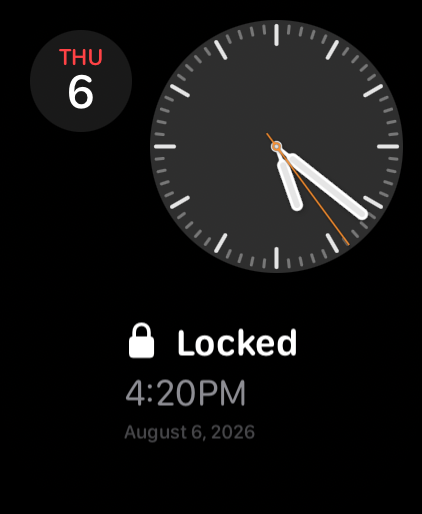
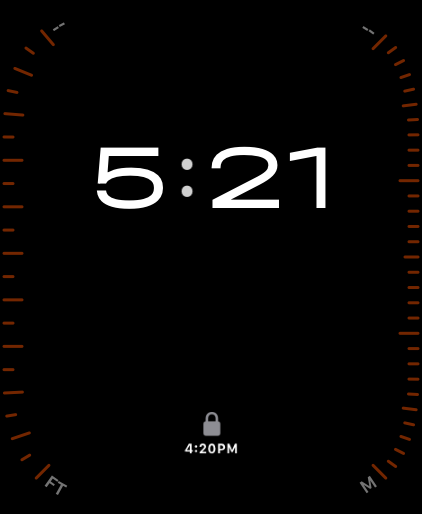
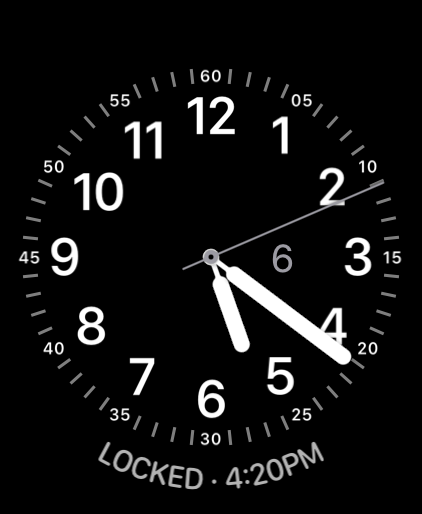
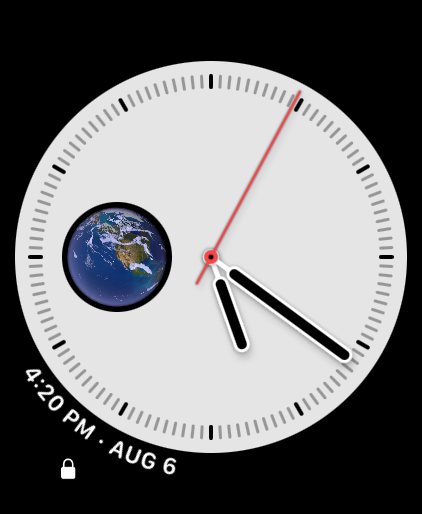
The BetterKey watch app publishes a Last Activity complication that shows BetterKey's most recent recorded event on the watch face, paired with the time and date it was recorded. Examples include a lock or unlock command, an automation event, or a saved park location. Configure it by long-pressing the face, editing complications, and selecting BetterKey. It reads from the same seven-day Activity history the Activity screen shows and never presents an event as live vehicle state. Tapping the complication opens the Activity screen on the watch. See Activity.
Requires: The BetterKey watch app installed and signed in. No vehicle connection or additional permission is needed.
| State | Rectangular | Circular | Inline | Corner |
|---|---|---|---|---|
| Activity present | A category glyph, the event title, the recorded time, and the recorded date | A category glyph above the recorded time | Event title followed by “·” and the recorded time | A category glyph at the corner with the recorded time and a short date along the arc |
| No activity | A bell glyph, “No activity available”, and a short caption that the last notification or command will appear here | A neutral BetterKey key glyph above a dash | A neutral BetterKey key glyph and “No activity” | A neutral BetterKey key glyph with “No activity” along the arc |
| Where it appears | Watch faces with rectangular, circular, inline, or corner accessory slots. The picker lists it under BetterKey. Concise time and date curl along the outer arc on the corner variant only when the face itself renders arced labels. |
|---|---|
| What the timestamp means | The time and date are when BetterKey recorded the event on the device that generated it, not a live vehicle reading and not when the complication last refreshed. VoiceOver announces a relative age for the same event. The complication never presents the entry as current vehicle state. |
| Where the data comes from | The complication reads from the retained Activity log on the watch. When the paired iPhone app is signed in to the same BetterKey account, entries reconcile between devices as described in Chapter 6. The complication itself never contacts the vehicle or the BetterKey service; it does not run a network request to refresh its face. |
| What it does not do | The complication does not lock, unlock, start, or stop the vehicle and does not schedule any automation. Tapping it opens the Activity screen on the watch. It is a passive readout of history. |
| When it is empty | Before any Activity has been recorded, after Activity ages out of the seven-day retention window, after Activity is cleared, or after you sign out, the complication shows the empty state for that family instead of a fabricated event. |
Set up widgets and controls on iPhone
On the Home Screen, touch and hold an empty area, tap Edit, then Add Widget and choose BetterKey. On the Lock Screen, touch and hold the screen, tap Customize, and choose a compatible widget slot. Vehicle Controls and Window Status require one selected vehicle per instance; Last Activity needs no vehicle selection. To change a configured vehicle, edit the widget and select a different car.
Individual BetterKey Lock and Unlock controls are also available from the iOS 18 Control Center gallery, as replacement Lock Screen controls, and from the Action Button's Controls option on supported iPhone models. Each control operates one selected vehicle. See the step-by-step iPhone widgets and controls guide.
Vehicle Controls widget and controls
The configurable Vehicle Controls widget places Lock and Unlock actions for one selected vehicle on the Home Screen or Lock Screen. BetterKey also publishes separate Lock and Unlock controls for Control Center, Lock Screen control positions, and the Action Button on supported iPhone models.
Requires: iOS 18 or later, a connected vehicle that supports the selected command, internet access, and an active Free Week or subscription when vehicle control requires one. One vehicle per widget or control instance.
| Where they appear | The Vehicle Controls widget supports small and medium Home Screen layouts and circular and rectangular Lock Screen layouts. Separate Lock and Unlock controls appear in the iOS 18 controls gallery. |
|---|---|
| Vehicle selection | Adding or editing an instance opens BetterKey's vehicle picker. Each instance stores one vehicle; add another instance to operate a second vehicle. |
| What a tap does | The action restores the BetterKey session, refreshes the selected vehicle by ID, and sends the same Lock or Unlock request used by BetterKey's in-app controls. It is not a Bluetooth or proximity key, and the widget face itself does not poll the vehicle. |
| Authentication | Unlock cannot run while the iPhone is locked, so iOS asks you to unlock it before the command runs. An already unlocked iPhone does not require another BetterKey authentication prompt. Lock may run while the device is locked. |
| When a command is unavailable | The command cannot complete when the iPhone is offline, the BetterKey session needs attention, the selected vehicle or capability is unavailable, a subscription is required, or another part of the connected-services chain cannot respond. BetterKey presents the next step in the result dialog. |
Last Activity widget
The BetterKey iPhone app publishes a Last Activity widget that shows BetterKey's most recent recorded Activity entry on the Home Screen and Lock Screen. Add it from the widget gallery under BetterKey. Supported sizes are small and medium on the Home Screen, plus rectangular, circular, and inline Lock Screen / StandBy accessories. Tapping the widget opens the Activity screen on the iPhone. See Activity for what the log contains.
Requires: No device permissions beyond installing BetterKey.
| Where it appears | Home Screen (small and medium) and Lock Screen / StandBy accessory slots (rectangular, circular, and inline). The picker lists it under BetterKey as “Last Activity.” |
|---|---|
| What the timestamp means | The relative age is when BetterKey recorded the event, not a live vehicle reading and not when the widget last refreshed. The widget never presents the entry as current vehicle state. |
| Where the data comes from | The widget reads from the retained Activity log on the iPhone. It never contacts the vehicle or the BetterKey service and does not run a network request to refresh its face. |
| What it does not do | The widget does not lock, unlock, start, or stop the vehicle and does not schedule any automation. Tapping it opens the Activity screen on the iPhone. It is a passive readout of history. |
| When it is empty | Before any Activity has been recorded, after Activity ages out of the seven-day retention window, after Activity is cleared, or after you sign out, the widget shows “No activity” instead of a fabricated event. |
Window Status widget
For compatible vehicles, the BetterKey iPhone app also publishes a Window Status widget that shows the vehicle's most recent window state on the Home Screen and Lock Screen. Add it from the widget gallery under BetterKey. See Open Window Alert for the related precipitation-driven notification.
Requires: A Smartcar-connected vehicle that reports window status, with the security scope granted at connection time. Coverage varies by make and model. See the compatibility grid for the current list. One vehicle per widget instance.
| Where it appears | Home Screen (small and medium) and Lock Screen / StandBy accessory slots (rectangular, circular, and inline). The picker lists it under BetterKey as “Window Status.” |
|---|---|
| Freshness | The reported time is when the automaker last updated the window state, not when BetterKey fetched it. When more than 24 hours have passed since the automaker's last report, the widget marks the reading as stale rather than claiming a current state. |
| Where the request runs | The iPhone widget extension requests the window state from BetterKey on a system-managed schedule and after related events. It does not run continuously and does not wake the vehicle beyond the automaker's own reporting cadence. |
| What it does not do | The widget does not close windows and does not lock or unlock the vehicle. Tapping the widget opens the selected vehicle in BetterKey. It is a passive readout of window state. |
| When it is unavailable | The widget reads as “Unavailable” when the vehicle is not connected, the required scope is not granted, the automaker returns no reading, or the iPhone is offline without a cached reading. A previously cached reading may still be shown briefly while a refresh is in progress. |
Siri
On iPhone, Siri can lock one vehicle, lock all vehicles, unlock one vehicle, open Find My Car, or check whether a vehicle has any open windows. BetterKey supplies phrases that include the app name; try “BetterKey lock my car,” “BetterKey unlock my car,” “BetterKey lock all my cars,” “BetterKey where is my car,” or “BetterKey are my windows open.” See Siri.
| Vehicle selection | You can name a connected vehicle. If a request such as “lock my car” does not identify one and multiple vehicles are available, Siri asks you to choose. |
|---|---|
| Authentication | On iPhone, Unlock, Find My Car, and Check Windows require local device authentication. Lock and Lock All may run without opening BetterKey. Apple controls the exact authentication prompt and whether the device is in a state that permits the action. |
| Find My Car | Find My Car opens BetterKey. If a confirmed Park Location is available, Siri can report that saved location before the app opens. Otherwise the app opens Find My Car with the last-known location retained on the device. If none is retained, Find My Car requests an initial location. Tap Refresh to force a later request. |
| Check Windows | Siri reports whether any windows are open and when the vehicle supplied the reading. It does not treat a stale, unsupported, or failed reading as confirmation that the windows are closed. |
| Result | Siri reports the result returned by BetterKey. For Lock and Unlock, a request reported as sent but unconfirmed has the same limits as an unconfirmed command in Chapter 5. |
Shortcuts
BetterKey provides Lock, Unlock, Lock All, Find My Car, and Check Windows actions in Apple's Shortcuts app. You can place them in a shortcut or personal automation with triggers and conditions supplied by Apple. A gallery of example builds is available at Shortcuts, including Nightly Lock, Arrive at Location, and CarPlay Disconnect.
| Lock and Unlock | Select a connected vehicle and optionally set Run After Delay. BetterKey accepts delays from zero seconds through 24 hours. A delay changes when the command is submitted; it does not reserve a connection to the car or guarantee execution at an exact second. |
|---|---|
| Lock All | Attempts a lock request for every connected vehicle, even when one request fails. Each vehicle remains an independent command: some may be confirmed, some may be accepted without confirmation, and some may fail. The result reports how many requests were accepted and identifies vehicles whose requests failed. |
| Find My Car | Requires local device authentication and opens BetterKey to the selected vehicle. It prefers a confirmed Park Location when one is available; otherwise Find My Car shows the last-known location retained on the device. If none is retained, it requests an initial location. Use Refresh to force a later request to the connected service. |
| Check Windows | Select a connected vehicle. After local device authentication, BetterKey asks the vehicle provider for a current window reading and reports both the result and when the vehicle supplied it. The action returns true when any window is open and false when all reported windows are closed. It returns no value when the reading is stale, its freshness cannot be determined, the vehicle does not share window state, or the request fails. It checks window state only; it does not close windows. |
| Automatic execution | Apple decides when a personal automation runs and whether it requires confirmation or authentication. BetterKey receives the vehicle action only after Shortcuts runs it. Device connectivity, subscription status, provider availability, and vehicle reachability still apply. |
| Result | The action returns success or failure to Shortcuts. Success means the BetterKey action completed according to Chapter 5; it does not give Shortcuts independent proof that the physical vehicle changed state. For Check Windows, the optional Boolean result can be used as a condition in the rest of the shortcut. Handle a missing value separately from false; a missing value does not confirm that every window is closed. |
API Access and Homebridge
BetterKey can issue API keys that let approved external tools read a limited slice of your account. The first supported tool is Homebridge, an open-source home automation server that runs on your own hardware. The plugin homebridge-betterkey uses one of these keys to publish a read-only Parked at Home motion sensor to Apple Home for each connected vehicle.
The integration is read-only end-to-end. Homebridge cannot lock, unlock, start, stop, locate, or otherwise control the vehicle through a BetterKey API key. See Chapter 3 for the command chain that these keys do not participate in.
API Access
Manage keys from You › Tools › API Access. API keys are credentials for approved external tools; they are not your BetterKey sign-in credential and do not expose the full BetterKey app. A key can read eligible vehicle identity, Home Arrival events, and supported OEM telemetry, but cannot retrieve vehicle locations or send commands. A key cannot create, list, or revoke other keys. The current Homebridge plugin requests vehicle identity and Home Arrival events only.
| One-time secret | The complete secret is displayed only once, when the key is created. Copy it into the tool that will use it before dismissing the reveal sheet. Afterward, API Access shows the key's label and lifecycle information, not the complete secret. |
|---|---|
| Where the secret lives | Homebridge stores the key in its local configuration on your Homebridge server. Treat the secret like a password. Do not paste it into screenshots, support messages, public logs, or shared notes. |
| Active-key limit | Up to five active API keys per account. When the limit is reached, revoke an existing key before creating another. |
| Lifecycle information | Each key entry shows its label, the date it was created, and the last time it was used. Use this to recognize a key you no longer need. |
| Revoking a key | Revocation takes effect immediately. Homebridge and any other tool using the revoked key will stop working. To restore access, create a new key and copy it into every tool that should continue. BetterKey retains the key's one-way hash, label, prefix, and lifecycle times as a security audit record until you delete the account. |
| Subscription requirement | Requests made with an API key require an active BetterKey subscription. Canceling or losing the subscription makes those requests unavailable even if the key itself has not been revoked. |
If a key is exposed or lost, revoke it in API Access right away, then create a replacement. There is no way to recover a previously issued secret; revoking and reissuing is the only remediation.
How Homebridge connects
Homebridge is separately installed and operated by you on your own hardware. The plugin homebridge-betterkey is an open-source Homebridge plugin, not native HomeKit accessory support. It uses the API key to fetch your vehicle list and poll BetterKey for Parked at Home events, and publishes a motion sensor per vehicle to Apple Home that pulses active each time a new event arrives.
- Park Location on your iPhone confirms a park inside the home area you set (see Chapter 6 and Chapter 9).
- BetterKey records a Parked at Home event on your account for that vehicle.
- The homebridge-betterkey plugin, running on your own Homebridge server, polls BetterKey for new events using its API key.
- Homebridge pulses that vehicle’s motion sensor active for about 30 seconds so scenes and automations in Apple Home can react to the arrival.
Removing the Homebridge accessory or uninstalling the plugin does not by itself revoke the BetterKey API key. When access should end, revoke the key in BetterKey.
For installation and configuration, see the Set up Homebridge guide and the plugin's source repository. For eligibility, see Compatibility. For BetterKey's account and vehicle-authorization boundaries, see Security overview.
What appears in Apple Home
The plugin creates one BetterKey accessory per discovered vehicle. Each accessory publishes a single motion sensor.
| Parked at Home motion sensor | One motion sensor per vehicle, named after the vehicle. The sensor pulses active for about 30 seconds each time a new Parked at Home event arrives, then returns to inactive. It is an arrival trigger, not a live presence sensor, and the inactive state is not an assertion that the vehicle is away. Use it as the trigger for a Home scene or automation. |
|---|
Timing and unavailable states
Parked at Home events are produced on your iPhone by Park Location, sent to BetterKey, and picked up by the plugin the next time it polls. The plugin defaults to polling once per minute; the interval is configurable within a supported range. A poll does not cause BetterKey to produce new events.
| End-to-end delay | Park Location’s confirmation delay adds to the plugin’s poll interval. Expect anywhere from a minute or two after parking to several minutes. Do not build automations that rely on the sensor pulsing at a precise moment. |
|---|---|
| Missed events | If Park Location does not confirm a park, no Parked at Home event is generated and the sensor does not pulse. Common causes include denied Always location, iOS not running the app in the background, and drives that end outside the home radius. |
| Event availability and deletion | An event is available to an authorized integration for 24 hours after it occurred. It becomes unavailable when that period ends. BetterKey runs account-independent cleanup at startup and hourly to permanently remove expired records; an infrastructure outage can delay physical deletion until the next successful cleanup. |
| Fault or unavailable | If the plugin cannot reach BetterKey, the subscription is inactive, or the API key has been revoked, the accessory stops receiving events. The motion sensor stays inactive; an inactive reading is not proof that the vehicle is not at home. |
Do not build safety-critical automations on top of the Parked at Home sensor. A missed, delayed, or unavailable pulse is not proof that the vehicle is or is not at home. Verify at the vehicle when it matters.
Removing access and recovering
| Revoke a key in BetterKey | Invalidates the credential immediately. Homebridge stops receiving events. Use this when a key is exposed, lost, or no longer needed. The key's one-way hash and lifecycle metadata remain as a security audit record until account deletion. |
|---|---|
| Replace a revoked key in Homebridge | Create a new key in API Access, then update the plugin's local configuration with the new secret so Homebridge can resume receiving events. |
| Remove the accessory or uninstall the plugin | Stops Homebridge from publishing the BetterKey accessory to Apple Home, but does not by itself revoke the API key. Revoke the key in BetterKey when access should end. |
For step-by-step recovery when the accessory is missing, the key is invalid, the subscription is inactive, or the motion sensor is not pulsing when you expect it to, see the Set up Homebridge guide and Chapter 12.
When sending diagnostics or logs to support, do not include API-key secrets, account details, vehicle identifiers, private hostnames or IP addresses, or other personal data. BetterKey support does not need them to investigate a problem.
Smart Home
Smart Home triggers publish events when a real-world condition BetterKey can observe is met. Each event is sent to a smart-home platform through a supported integration, so a scene or automation on that platform can react to it. Smart Home is not a live-presence sensor and does not send commands to the vehicle.
What you need
- A supported smart-home integration set up and running. Currently that is Homebridge, described in Chapter 8. Without a consumer, Smart Home events have nowhere to land.
- Any per-trigger prerequisites listed with the trigger. Home Arrival requires Park Location; see Chapter 6.
- A connected vehicle that reports the information the trigger relies on. Coverage varies by vehicle; see Compatibility.
Home Arrival
Publishes an event when Park Location confirms that the vehicle was parked inside a home area you set. A scene on the receiving smart-home platform can react to that event without BetterKey exposing where home is or where the vehicle is at any other time.
Requires: Park Location, a supported smart-home integration set up and running.
| Setup | Enable Park Location first. Then enable Home Arrival in the Smart Home section of the Features tab, and set the home location on the map picker: search an address or tap to drop a pin, adjust the radius, and commit with the bottom action. |
|---|---|
| When it fires | Only when Park Location confirms a park whose coordinate falls inside your home area. It does not fire on a drive-by, on a transient GPS excursion inside the radius while driving, or on an unconfirmed park. |
| What the event means | A single “parked at home” signal for the vehicle that parked. It is an event, not a live presence sensor. “Not at home” is not asserted. |
| Privacy | The event carries the boolean-shaped “parked at home” signal. The home coordinate and vehicle location are not transmitted through the integration. The home pin is stored on your device; revoking integration credentials does not delete it, and turning the toggle off does not delete it. Address search and the readable-address display use Apple Maps services, which may process the search text or coordinate to return a result; BetterKey does not receive or store either. |
| Timing | Confirmation timing inherits Park Location's. A park may take minutes to confirm, and the event fires only after that confirmation. |
| Radius tuning | A too-small radius will miss valid parks; a too-large radius will fire on nearby not-home parks. Adjust the radius after observing a few days of real parks. |
| Limits | Home Arrival cannot lock the car when the event fires; the supported integration is read-only end-to-end. It requires a connected vehicle that reports parking location to BetterKey. |
Removing or changing triggers
| Turn Home Arrival off | Stops publishing the event. Keeps your saved home pin so re-enabling later does not require setting it again. |
|---|---|
| Uninstall or reconfigure the integration | Removes the consumer. BetterKey may still evaluate the trigger, but the event has nowhere to be delivered. |
| Turn Park Location off | Home Arrival can no longer fire, because it depends on Park Location’s confirmed-park signal. Home Arrival is turned off in lockstep, and any smart-home automations relying on the event stop firing. |
Automations built on Home Arrival are best-effort. iOS controls when Park Location can confirm a park, and delivery to the smart-home platform depends on the integration described in Chapter 8. Do not rely on the event firing at a precise moment.
Notifications, Permissions, and Background Behavior
BetterKey asks for system access when you enable or use a feature that needs it. Granting access allows the feature to work, but it does not give BetterKey control over when iOS will run the app in the background.
| Access or setting | Used by | What changes when it is off |
|---|---|---|
| Notifications | Command results and automation alerts | BetterKey does not deliver notification banners, sounds, or badges. The underlying check can still run, and supported events still appear in Activity. A Live Activity may still appear when that setting is enabled. |
| Location While Using | Find My Car | The map can still show the vehicle location reported by its connected service, but it cannot show your device's position or use it as the starting point for directions or a rideshare pickup. |
| Always Location | Park Location and Prompt to Unlock | Park Location cannot recognize and save a new park while BetterKey is not open, and Prompt to Unlock cannot respond to an approach while BetterKey is in the background. Always Location lets iOS deliver relevant location events in the background; it does not promise that BetterKey will run at an exact time. Features that only use a confirmed Park Location list that dependency in Chapter 6. |
| Motion & Fitness | Park Location and Lock on Depart | BetterKey cannot use changes such as driving, walking, or running to decide that a trip ended or that you walked away. BetterKey does not use this access as a workout or fitness log. |
| Live Activities | Lock on Depart and Prompt to Unlock | BetterKey cannot show Lock on Depart progress or its one-tap unlock prompt as a Live Activity on the Lock Screen or Dynamic Island. Their notifications can still appear when notifications are enabled. |
What starts background work
BetterKey is not a continuously open process. iOS gives it limited opportunities to work when something relevant happens.
| Event | What BetterKey may do |
|---|---|
| A trip appears to end | iOS may wake BetterKey to evaluate Park Location. If BetterKey confirms a park, it can save the location and begin the checks that depend on that event. |
| You move away from the parked car | Lock on Depart looks for the departure evidence described in Chapter 6 and, if confirmed, sends one lock request. |
| You approach the parked car | iOS may wake BetterKey near the saved location so Prompt to Unlock can decide whether to offer its one-tap prompt. |
| BetterKey becomes active | BetterKey refreshes visible information and runs foreground checks, including Open Window Alert when it is enabled. |
What background access does not guarantee
iOS decides when BetterKey may run and how much time it receives. A permission can be granted and a feature can be enabled without iOS delivering every event immediately. Network availability, the vehicle's connected service, and the automaker still affect anything BetterKey tries to do during that time.
You can change these permissions and settings at any time in the iOS Settings app. If you restore access later, return to the Features tab in BetterKey on iPhone, or BetterKey Settings on Apple Watch, and confirm that the feature is enabled.
Security, Privacy, and Removing Access
BetterKey separates account access, vehicle access, and information stored on your device. Removing one does not necessarily remove the others. This chapter explains where each kind of access lives and how to remove it.
How access and information are handled
| Information or action | How BetterKey handles it |
|---|---|
| BetterKey sign-in | Customer accounts use Sign in with Apple. BetterKey never receives your Apple ID password. Apple provides a stable account identifier and, when you choose to share them, your name and email address or private relay address. BetterKey verifies the Apple sign-in before creating a session. |
| Session on your device | BetterKey stores its app session in the iOS Keychain. The session is available only after the device has been unlocked since it started. Signing out or reinstalling BetterKey clears the local session before a new one begins. |
| Vehicle connection | BetterKey sends you through the vehicle connection flow. You sign in with your automaker there and approve the requested access. Your automaker password does not reach BetterKey. BetterKey receives an authorization token instead. |
| Stored vehicle authorization | BetterKey encrypts the vehicle authorization before storing it on the BetterKey service. The service uses it only for the vehicle access you approved and does not return it to the app after the vehicle is connected. |
| Vehicle requests | Requests travel from the app to BetterKey over an encrypted internet connection. Before processing a request, the service verifies the BetterKey session, that the vehicle belongs to the account, and any subscription requirement. The connected-services chain in Chapter 3 still controls what happens next. |
| Location and automation data | Device location, confirmed Park Locations, and proximity regions used by automations are processed on your device. BetterKey does not store precise location coordinates on its servers or include them in crash and error logs. When you choose directions or a rideshare, the destination is passed to the app you selected. |
| Notifications and diagnostics | When notifications are enabled, BetterKey stores the device identifiers and delivery metadata needed to send them. Product analytics may include feature use, vehicle identifiers, and in some cases approximate coordinates. Error reports may include device information and location-accuracy metadata, but not precise coordinates. See the Privacy Policy for the providers, retention, and choices that apply. |
| API keys for external tools | Keys issued in You › Tools › API Access are credentials for approved external tools such as the Homebridge plugin. They are separate from your BetterKey sign-in and grant read-only access to eligible vehicle identity, Home Arrival events, and supported OEM telemetry. They cannot retrieve vehicle locations or send commands. The current Homebridge plugin requests only vehicle identity and Home Arrival events. The complete secret is shown once at creation. Homebridge stores the key locally in its own configuration on your server. BetterKey retains the key's one-way hash, label, prefix, and lifecycle metadata; revoking the key from API Access takes effect immediately, and account deletion removes the record. See Chapter 8. |
| Smart Home home area | The home coordinate and radius set for Home Arrival are stored on your device. BetterKey does not send them through the smart-home integration; only a boolean-shaped “parked at home” event is published. See Chapter 9. |
This summary does not replace the Security page and the Privacy Policy, which provide the full technical and legal details.
Removing access
| Action | What it removes | What it does not remove |
|---|---|---|
| Remove a vehicle | Deletes the vehicle and its stored authorization from BetterKey. BetterKey also attempts to end the vehicle connection. | It does not delete your BetterKey account or cancel your subscription. |
| Sign out | Clears the BetterKey session, resets feature settings, and clears cached vehicles, Park Location data, and Activity stored on that device. | It does not delete the BetterKey account, its connected vehicles, their stored authorizations, or the App Store subscription. Signing in again restores access to the account. |
| Delete the BetterKey account | Removes the account's vehicles and stored vehicle authorizations, then deletes the BetterKey account and session. It also permanently removes active and revoked API-key records and remaining Home Arrival events. BetterKey clears its local Home area, feature, parking, cache, and Activity data. | It does not cancel an App Store subscription. Limited records may be retained when required by law or another lawful basis described in the Privacy Policy. |
| Cancel the subscription | Stops future renewal according to Apple's subscription terms. Manage it in your App Store subscription settings. | It does not immediately delete the BetterKey account or local app data. When access ends, BetterKey may disconnect vehicles as described in the Privacy Policy. |
| Revoke an API key | Invalidates the credential immediately. Homebridge and any other tool using that key stops receiving events. | It does not delete the Homebridge accessory, the plugin, or the local Homebridge configuration on your server. Uninstall or reconfigure Homebridge separately if you also want to remove the accessory. |
Deleting your BetterKey account cannot be undone. Cancel any App Store subscription separately if you do not want it to renew.
Troubleshooting and Service Dependencies
Start with what BetterKey actually reported. A request that never started, a request sent without final confirmation, and an automation that never found its trigger are different problems. The table below maps each visible symptom to the part of the system most likely to need attention.
| What you see | What it usually means | What to check |
|---|---|---|
| BetterKey rejects the request before sending it | The app could not establish an authenticated, authorized request. Common causes include no internet connection, an expired BetterKey session, a vehicle that is no longer connected, or a subscription requirement. | Confirm the iPhone or Apple Watch is online, open BetterKey, and follow the message shown. Sign in, reconnect the vehicle, or restore the subscription when prompted. |
| The request takes longer than expected | The request is still moving through the automaker's connected service or waiting on the vehicle. A sleeping vehicle, poor cellular coverage, service load, or a low 12V battery can increase the delay. | Allow a minute or more, then check Activity for the result. Check BetterKey Status and try the automaker's app. If the automaker's app also cannot reach the car, the problem is downstream of BetterKey. |
| BetterKey says “Request sent” | The connected service accepted the request but did not provide final confirmation. The vehicle may or may not have completed it. | Use the guidance in Chapter 5. If the result matters, check the vehicle or the automaker's app before relying on it or sending another command. |
| A vehicle needs to reconnect | The vehicle authorization is no longer valid. Password changes, expired consent, automaker security checks, or removed permissions can cause this. | Use BetterKey's reconnect prompt and complete the vehicle connection flow again. Confirm that the automaker's own connected-services account and any required plan are active. |
| Find My Car is missing or shows an old location | The vehicle has not supplied a usable newer location, or the reported location is cached. A sleeping car, poor vehicle reception, or an unsupported location capability can prevent a fresh reading. | A preview or Find My Car may intentionally show older locally retained data without contacting the car. Read the timestamp first, then use Refresh to request the connected service's latest available location. If it remains old, check whether the automaker's app can obtain a current location. BetterKey cannot make the automaker produce a new GPS reading. |
| An automation did not run | Its trigger was not confirmed, a prerequisite feature or permission was unavailable, iOS did not provide enough background time, or the connected-services chain could not finish. | Check Activity for a Park Location or automation observation, then check the feature's requirements in Chapter 6. Confirm permissions in iOS Settings and the feature toggle in BetterKey's Features tab. |
| No notification appeared | The feature may still have run. BetterKey's notification toggle, iOS notification permission, Focus, or system delivery behavior can prevent a banner or sound. | Check Activity first. Then check Notifications in the Features tab and BetterKey's notification settings in the iOS Settings app. |
| BetterKey is missing from a widget, control, or complication picker | The containing iPhone or watch app may not have registered its extension with the system yet, the installed OS may be too old, or the selected watch face may not accept a supported family. | Confirm iOS 18 or watchOS 11 or later, open BetterKey once on the affected device after installing or updating, and try the picker again. On Apple Watch, confirm the BetterKey watch app is installed and try a rectangular, circular, inline, or corner slot. If needed, restart the affected devices and remove and add the surface again. |
| A vehicle is missing from a widget, control, or complication picker | BetterKey may be signed out or offline, the vehicle may need to reconnect, or the selected feature may require a capability the vehicle does not report. Window Status only lists vehicles with eligible window data and access. | Open BetterKey, confirm the vehicle appears and resolve any reconnect message, then return to the picker while online. For Window Status, check the compatibility grid and the required vehicle access. See the iPhone or Apple Watch setup guide linked in Chapter 7 for detailed steps. |
| A watch, Siri, or Shortcut action fails | The device may be offline or locked, the BetterKey session may need attention, or the selected vehicle or action may no longer be available. | Unlock and connect the device, open BetterKey if asked, and try the same control in the iPhone app. If it also fails there, troubleshoot the vehicle request rather than the Apple integration. |
| The Homebridge accessory is missing in Apple Home | The plugin may not be running, may not yet have completed discovery, or its API key may be invalid, revoked, or attached to an account with no subscription. | Confirm Homebridge is running and the plugin is installed. Check that the configured API key still appears in You › Tools › API Access. Confirm the BetterKey subscription is active. If the key was revoked, create a new one and update the plugin's configuration. |
| Home Arrival does not fire | Park Location may be off or the park not yet confirmed, the parked coordinate may fall outside the home radius, or the receiving integration may not be running. | Confirm Park Location is on and produced a recent observation in Activity. Check the home area and radius in the Smart Home section of the Features tab. Confirm Homebridge is running and receiving events from the plugin. See Chapter 9. |
When you contact support
Include the vehicle make and model, the action or feature, the approximate time and time zone, the device where it happened, the exact result or error, and whether the same action worked in the automaker's app. A screenshot of the BetterKey result or Activity entry is useful.
Never send support your Apple ID password, automaker password, vehicle PIN, or a verification code. BetterKey support does not need them to investigate a problem.
For step-by-step instructions, see Help. If the problem remains, contact support.
Technical Specifications and Important Limitations
These specifications describe the environment BetterKey supports. They do not mean that every supported vehicle provides every command, status, or automation input.
| iPhone | iOS 18 or later. The iPhone runs BetterKey's account, vehicle, location, and automation features. |
|---|---|
| Apple Watch | watchOS 11 or later; optional. After installation and sign-in, the watch can use its own available internet connection as described in Chapter 7. |
| BetterKey account | Sign in with Apple and an internet connection to the BetterKey service. |
| Vehicle account | An active automaker connected-services account, any plan required by the automaker, and approval for the access BetterKey requests. |
| Vehicle compatibility | A vehicle and region listed as supported by BetterKey. See Compatibility for the current eligibility check. |
| Vehicle controls | Remote lock and unlock when the vehicle connection grants those capabilities. Available readings and commands vary by vehicle. |
| Command transport | Internet from the iPhone or Apple Watch to BetterKey, then through the automaker's connected service to the vehicle's cellular connection. |
| Vehicle location | The latest location available from the connected service, with its reported timestamp when supplied. It is not a live GPS feed. |
| On-device history | The latest confirmed Park Location for each vehicle and seven days of Activity. Paired iPhone and Apple Watch apps signed in to the same BetterKey account opportunistically copy their retained Activity history to each other. BetterKey does not build a route history. |
| Background features | Run on the iPhone during execution time granted by iOS and require the permissions listed in Chapter 10. Apple Watch does not replace the iPhone for these features. |
| Notifications | Optional and controlled by both BetterKey's Notifications toggle and iOS notification settings. Delivery timing and presentation are controlled by iOS. |
| Homebridge integration | Optional. Requires the open-source homebridge-betterkey plugin, a Homebridge server you operate, an active BetterKey subscription, and a BetterKey API key. Read-only; the plugin polls BetterKey for Parked at Home events at a configurable interval that defaults to once per minute; not native HomeKit. See Chapter 8. Event delivery additionally depends on Park Location confirming a park inside the home area you set; see Chapter 6 and Chapter 9. |
| Smart Home triggers | Optional and off by default. Home Arrival requires Park Location and a supported smart-home integration set up and running. See Chapter 9. |
Important limitations
| Not a vehicle key | BetterKey is not a Bluetooth key, an Apple Wallet car key, or a replacement for the manufacturer's physical key. It cannot provide offline entry. |
|---|---|
| Not a tracking or recovery service | Find My Car shows the latest location available from the vehicle connection. BetterKey is not a continuous tracker, stolen-vehicle recovery service, roadside service, or emergency service. |
| No guaranteed availability | Every remote request depends on the device, BetterKey, the automaker, and the vehicle being reachable. Outages, poor reception, a sleeping vehicle, or a low vehicle battery can prevent or delay a response. |
| No independent physical confirmation | A successful or accepted response has only the meaning described in Chapter 5. BetterKey does not watch the locks move or independently prove the vehicle's physical state. |
| Vehicle support varies | Commands and readings depend on make, model year, region, connected-services plan, permissions granted, and automaker support. A compatible vehicle may not provide every BetterKey feature. |
| Automations are best-effort | The iPhone must have the required permissions and enough power, connectivity, sensor information, and background time. A missed automation is possible even when the feature is enabled. |
| Connections can change | A vehicle connection may require renewed consent, and an automaker may change or temporarily withdraw a capability. BetterKey may ask you to reconnect the vehicle. |
Carry the manufacturer's physical key and keep the automaker's app available. When access, security, or safety depends on the vehicle's state, verify it at the vehicle instead of relying only on a remote response.
Support, Legal Documents, and Revision Information
Support
| Help | Step-by-step instructions for setting up and using BetterKey. |
|---|---|
| Compatibility | Check current vehicle and region eligibility before connecting a car. |
| Service status | Check for a current BetterKey outage or service incident. |
| Contact | Ask for help with an account, connection, command, or feature problem that remains after Chapter 12. |
| Feedback | Suggest an improvement or tell BetterKey about a product issue. |
Legal documents
| Terms of Service | The terms governing use of BetterKey, subscriptions, acceptable use, and limitations of the service. |
|---|---|
| Privacy Policy | The complete description of information collection, processing, service providers, retention, and privacy rights. |
| Security overview | How BetterKey protects account sessions and stored vehicle authorization, and how access can be removed. |
Revision information
- Edition
- First Edition
- Last updated
- Scope
- Features available in the public production release
- Current copy
- betterkey.xyz/owners-manual
- Publisher
- CMLabs LLC
| Date | Edition | Material change |
|---|---|---|
| First Edition | Updated in-app navigation paths to match the shipping 1.27.0 build: API Access lives under You › Tools › API Access, and Home Arrival lives under Features › Smart Home. | |
| First Edition | Clarified Home Arrival event availability and scheduled deletion, Apple Maps processing during Home-area search, API-key audit-record retention, and the permanent removal of API keys and Home Arrival events during account deletion. | |
| First Edition | Added a new Smart Home chapter and documented Home Arrival, including setup with the map picker, the Park Location dependency, the “parked at home” event semantics, on-device home-pin privacy, radius tuning guidance, and how turning Home Arrival, the integration, or Park Location off each affects delivery. | |
| First Edition | Added a new API Access and Homebridge chapter documenting the API-key lifecycle (one-time secret, local Homebridge storage, five active-key limit, last-used metadata, subscription requirement, and immediate revocation), the read-only connection to Apple Home through the open-source homebridge-betterkey plugin, the per-vehicle Parked at Home motion sensor with its roughly 30-second pulse, end-to-end delay and missed-event behavior, fault and unavailable states, and removal and recovery paths. Renumbered downstream chapters and cross-references accordingly. | |
| First Edition | Documented the production Vehicle Controls widget and individual iPhone Lock and Unlock controls, including supported surfaces, per-instance vehicle selection, locked-device behavior, subscription requirements, setup steps, and troubleshooting for missing BetterKey or vehicle picker entries. Added setup guidance for all four Apple Watch complication families. | |
| First Edition | Documented the Window Status Home Screen and Lock Screen widget on iPhone, including supported families, the automaker-reported freshness rule, the stale reading threshold at 24 hours, and that tapping the widget opens the selected vehicle in BetterKey. | |
| First Edition | Documented the Last Activity Home Screen and Lock Screen widget on iPhone, including supported families, relative timestamps, empty-state behavior, and that tapping the widget opens Activity. Updated the Activity overview to list the widget as an iPhone entry point. | |
| First Edition | Replaced the one-free-command trial description with Free Week: one week of full vehicle control, with a paid subscription required afterward to keep controlling the car. | |
| First Edition | Documented that opening Find My Car walking directions or a ride request records an Activity receipt for seven days, and expanded the Activity overview to include those durable Find My Car outcomes alongside notifications and Cars-screen commands. | |
| First Edition | Expanded the Last Activity Apple Watch complication section with four-family screenshots, a per-family state matrix for Activity present and No activity, and operating details aligned with the Window Status complication. Corrected the face copy to match the recorded time and date shown on each family rather than a relative age. | |
| First Edition | Documented that the Apple Watch vehicle list has a top-left Activity button alongside Settings, so the Activity screen is reachable without the Last Activity complication. | |
| First Edition | Documented the Last Activity Apple Watch complication, including its four accessory-family surfaces, the empty state, and that tapping the complication opens the Activity screen on the watch. The complication is a passive readout of the retained Activity log and does not contact the vehicle or the BetterKey service. | |
| First Edition | Documented that paired iPhone and Apple Watch apps signed in to the same BetterKey account opportunistically reconcile their seven-day Activity histories while each device continues to work and record independently. | |
| First Edition | Extended how long the vehicle-card open window count stays visible after the automaker's last report to match the 24-hour freshness window already documented for the Window Status complication. Readings from a quiet or parked vehicle now remain visible between drives instead of dropping after roughly 90 minutes. | |
| First Edition | Clarified that BetterKey retains and displays last-known vehicle locations without repeatedly querying the vehicle, and requests an initial location when none is saved. | |
| First Edition | Replaced the vehicle-card open window count pill with a warning-triangle indicator that matches the card's other inline information. | |
| First Edition | Updated the rectangular Window Status complication guidance and screenshots to show the full “1 open window” / “N open windows” copy and the checked-time line. | |
| First Edition | Updated the stale Window Status corner complication guidance to show its retained last-known closed or open state, non-color warning badge, reading-age arc, and VoiceOver freshness semantics. | |
| First Edition | Added the Check Windows Siri and Shortcuts action, including its optional Boolean result, freshness and unavailable states and authentication requirement. | |
| First Edition | Updated the open window count pill copy to “1 open window” / “N open windows” and noted that the pill now appears only when the vehicle card is expanded. | |
| First Edition | Documented the open window count pill that can appear on iPhone and Apple Watch vehicle cards, when it shows or hides, and its relationship to Open Window Alert. | |
| First Edition | Materially reworded the user-facing vehicle connection, authorization, compatibility, command delivery, and availability guidance in BetterKey-owned terms. | |
| First Edition | Rewrote the Window Status complication section to reflect the state-focused rendering across rectangular, circular, inline, and corner families, and embedded a representative screenshot of each family with two windows open. | |
| First Edition | Documented the Window Status complication for Apple Watch, including freshness limits and availability behavior. | |
| First Edition | Documented Lock on Depart Live Activity progress, completion visibility, and notification fallback behavior. | |
| First Edition | Initial publication. |
BetterKey changes over time. Compare the revision date on a printed copy with the current online manual before relying on it.
Printed from https://betterkey.xyz/owners-manual